Use custom JPA Annotations
You want to create robust data models that reflect the structure of relational databases using the Solution Designer.
Description
This How-To will teach you how you can map your entities to relational database tables using the Solution Designer. The Workbench will then automatically generate the corresponding code.
Preconditions
- You have an already created Java project with persistence layer of RDBMS.
Naming strategy
To overwrite the naming strategy in your project, add the following part to your application.yaml.
spring.jpa:
  hibernate:
    naming:
      implicit-strategy: org.hibernate.boot.model.naming.ImplicitNamingStrategyComponentPathImpl
      physical-strategy: org.hibernate.boot.model.naming.PhysicalNamingStrategyStandardImpl
To switch to Spring defaults, set the naming strategy parameter in your k5-project.yml:
aggregatePersistenceSupport:
    databaseType: DB2
    enabled: true
    namingStrategies: default
Generate DDL files
You can generate DDL files containing the create and drop statements for your database running the main method of the SchemaGenerator.java in your project
public static void main(String... args) throws Exception{
  var schemaGenerator = new SchemaGenerator();
  schemaGenerator.packageNames = Arrays.asList(SchemaGenerator.class.getPackageName());
  schemaGenerator.settings =
    loadYamls( //
      "./src/main/resources/application.yaml", //
      "./src/main/resources/application.yml", //
      "./src/main/resources/application-local.yaml", //
      "./src/main/resources/application-local.yml", //
    );
  schemaGenerator.generate();
}
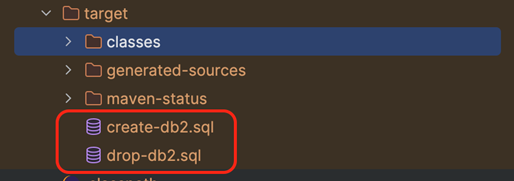
This will generate a create and drop SQL file in your project's target folder as follows
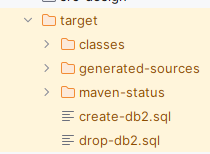
Snippet of the create file
create table allordersCatalog.allordersSchema.OrderEntity (country_code varchar(3) not null, orderVolume_price decimal), ...;
create index allordersCatalog.allordersSchema.orderIdIndex on allordersCatalog.allordersSchema.OrderEntity (orderId) ...;
alter table allordersCatalog.allordersSchema.OrderEntity add constraint UK_ks649jyti81kqukhspfto4bx unique (orderId) ...;
create sequence OrderEntity_SEQ start with 1 increment by 50;
create table OrderEntity_orderStatusHistory ("orderStatusHistory_validFrom" timestamp(6), "orderStatusHistory_end" ...;
alter table OrderEntity_orderStatusHistory add constraint FKLrsaaI58sx8a8oeflbg1enjd7 foreign key (OrderEntityId) ...;
This is a partial code snippet. The full code is not included here.
Snippet of the drop file
drop table allordersCatalog.allordersSchema.OrderEntity;
drop table OrderEntity_orderStatusHistory;
drop sequence OrderEntity_SEQ restrict;
Add JPA annotations for a root entity
To add custom JPA annotation for a table, follow these steps:
- Open the root entity in the Solution Designer which is associated with that table.
- Open the edit view, for "JPA annotations"
- Select "Custom"
- Then add your JPA settings
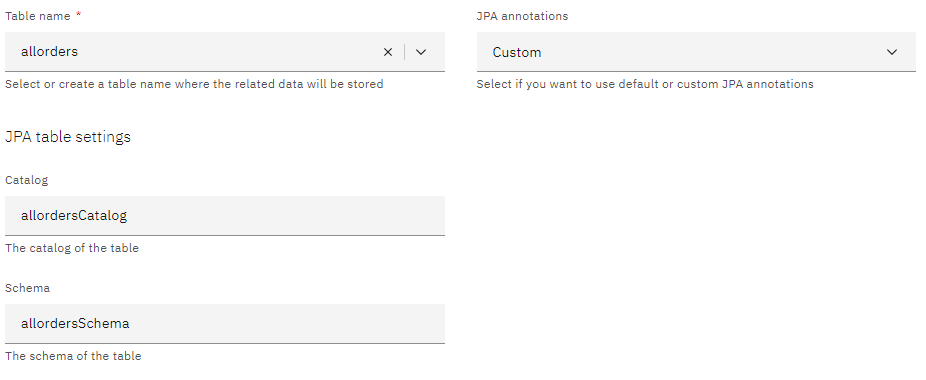
You can also add unique constraints and indexes. Furthermore, you can add custom annotations of your choice, which then will be added to the generated code. Make sure to add the fully qualified annotation
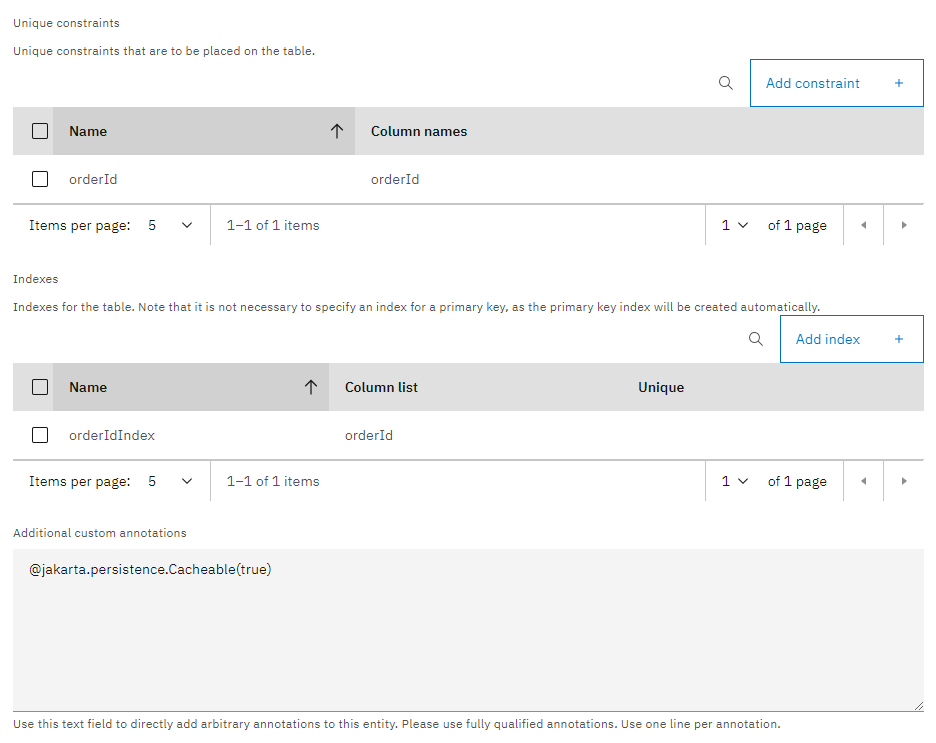
Generated code for custom JPA annotations - Root entity
These changes in the Solution Designer will result in generated annotations for the root entity class in your code:
@k5.sdk.springboot.domain.annotation.Domain(name = "orders")
@TypeAlias("orders:Order")
@Table(
  catalog = "allordersCatalog",
  schema = "allordersSchema",
  indexes = { @Index(name = "orderIdIndex", columnList = "orderId") },
)
@jakarta.persistence.Entity
@jakarta.persistence.Cacheable(true)

public class OrderEntity extends k5.sdk.springboott.rdbms.entity.AbstractEntityBase implements Order{
Add JPA annotations for a root entity's properties
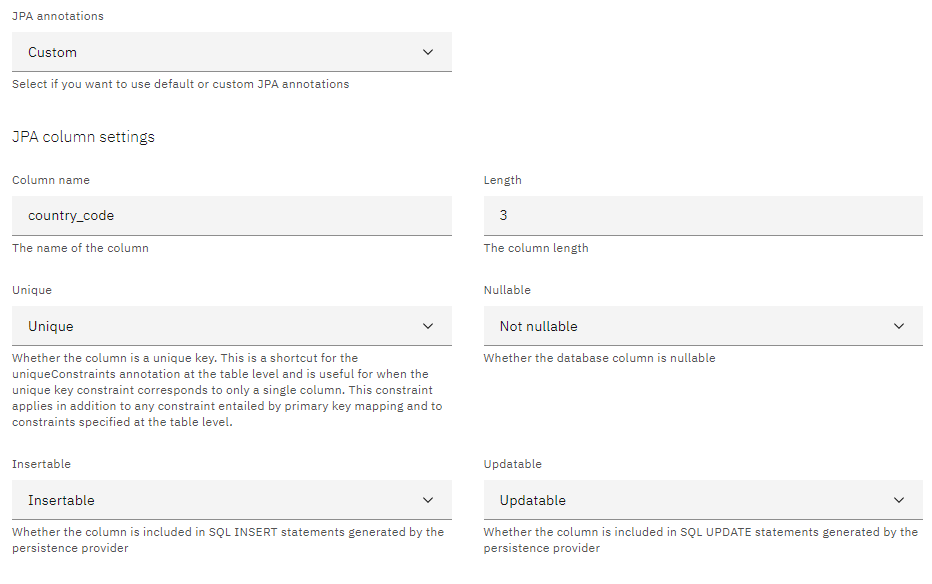
You can also add JPA annotations to a table's columns. Since columns are mapped to the root entity's properties, in the Solution Designer open the edit view for the property you want to add JPA annotations to and edit the property association in the root entity, set the parameters in the same manner as for root entity.
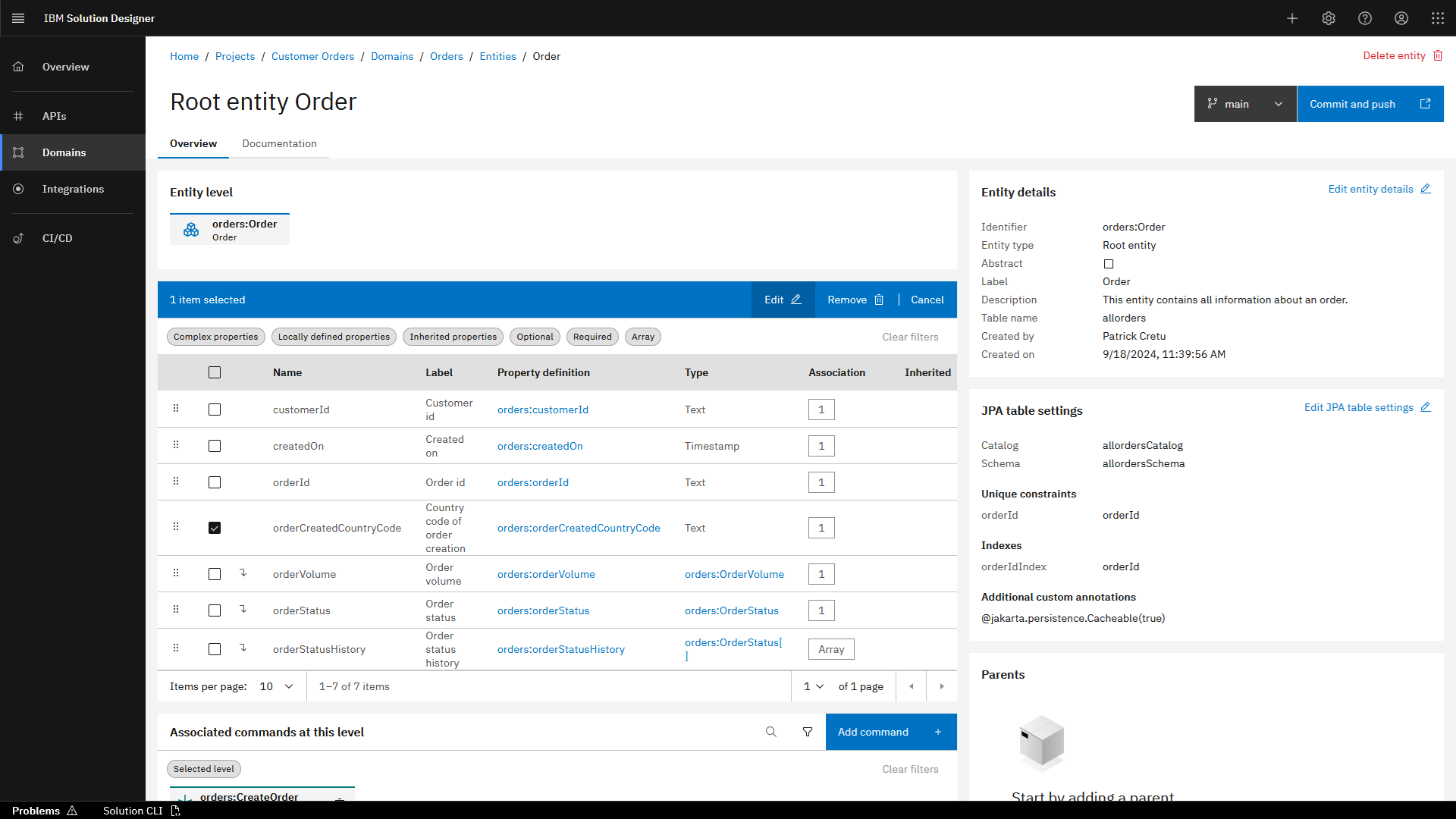
Set primary key
You can set your primary key in a root entity.
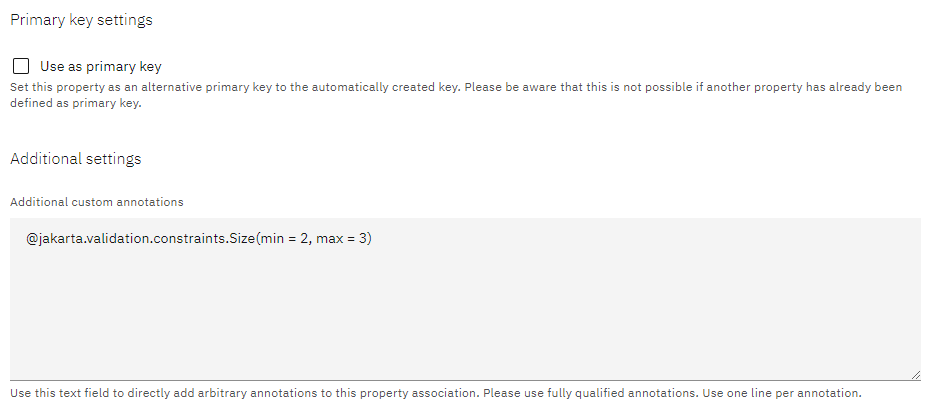
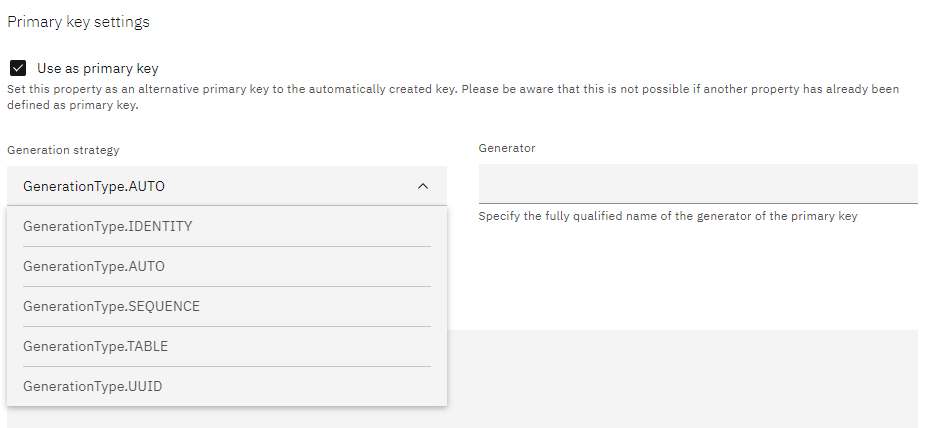
Check the primary key checkbox to true, you will see more details to set the primary key. If you choose to use a property as a primary key in your entity, you can select the generation strategy for the key in the database table.
Set composite key
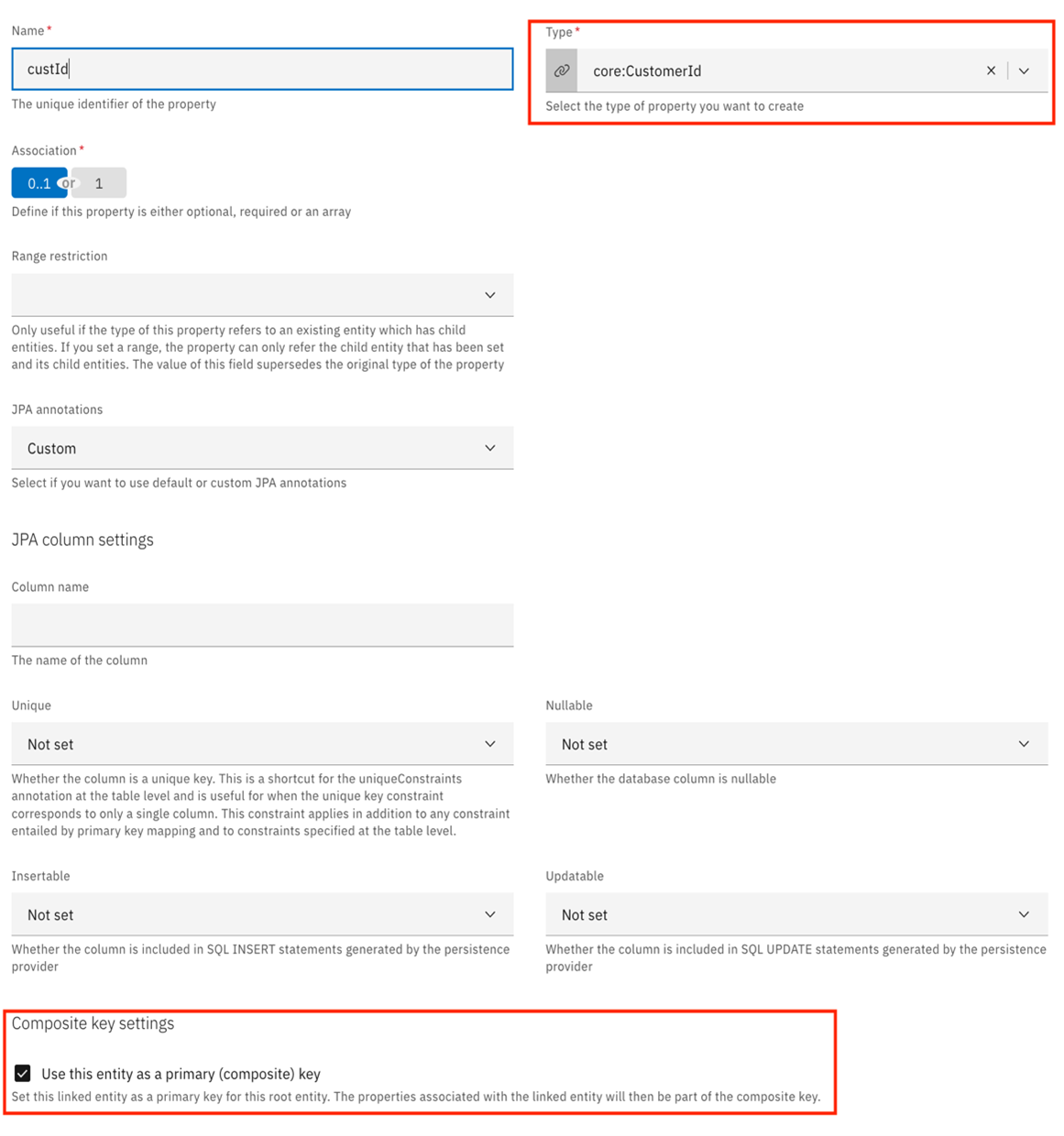
You can set a composite key for a root entity. When creating or editing a property (within the root entity), make sure to check "Use this entity as a primary (composite) key". Further prerequisite is that this property is referencing another entity.
After you have committed and pushed your changes, you can checkout the generated code in the SchemaGenerator.java class.
You will have to run SchemaGenerator.java using your IDE or from terminal using maven command.
-
Using IDE
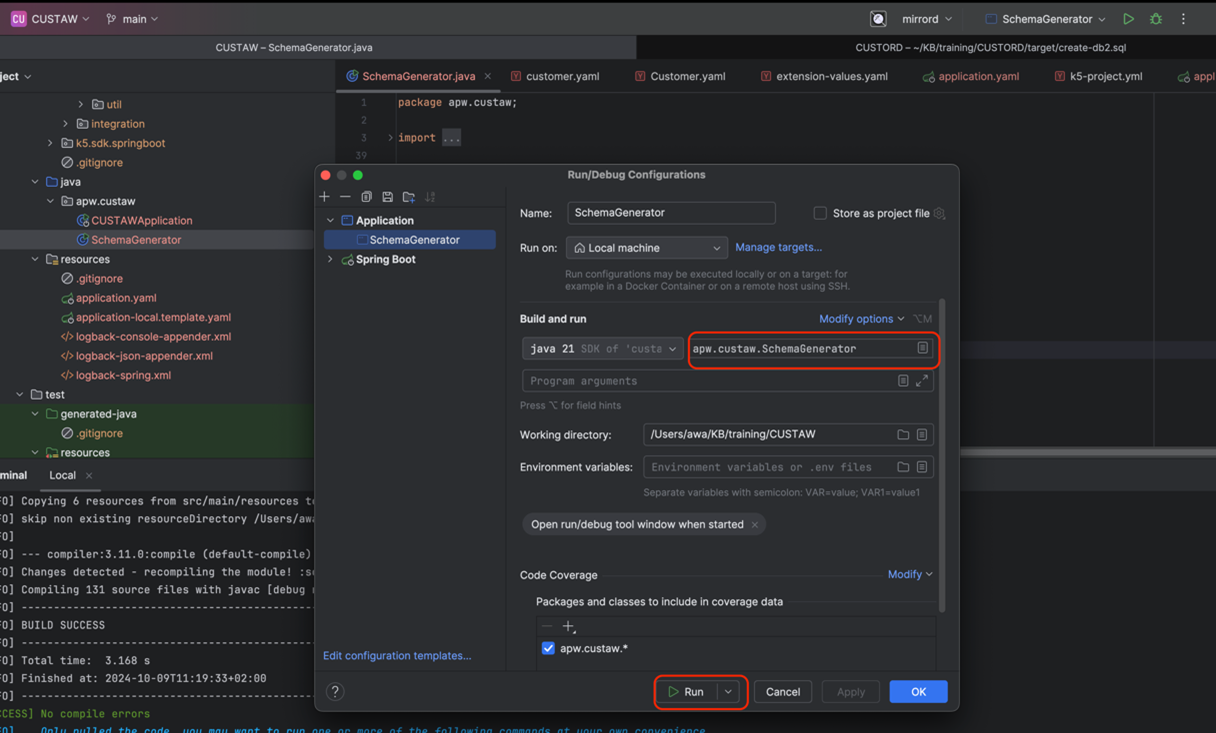
-
Using Maven Command Execute this command from root of the application where pom xml is located
mvn exec:java -Dexec.mainClass="{package-name}.SchemaGenerator"example:
mvn exec:java Dexec.mainClass="apw.custaw.SchemaGenerator"
You will then be able to see the generated DDL scripts in target folder
Generated code for custom JPA annotations - Individual property
The custom JPA annotations for the individual properties will result in generated code like this
@Column
@Id
@GeneratedValue(strategy = GenerationType.AUTO)
@NotEmpty
protected String orderId;

@Column(name = "country_code", length = 3, unique = true, insertable = true, updatable = true, nullable = false)
@NotEmpty
@jakarta.validation.constraints.Size(min = 2, max = 3)
protected String orderCreatedCountryCode;
Related Links
Please find more information about JPA annotations: