Create and edit custom OML Profiles
You want to create a custom Open Modeling Language (OML) profile tailored to your specific concern or domain so that you can use it in the IBM DevOps Solution Workbench.
Description
This How-To shows you
- which parts an OML profile contains that shape the set of vocabulary for your specific concern or domain
- how to create your own custom OML profile to be used in a modeling configuration
- how to make the profile accessible to the IBM DevOps Solution Workbench
For more information about OML and how key concepts such as modeling configurations and profiles are tied to each other, please read the Product Documentation - OML.
The product documentation also provides a basic guide for creating custom OML profiles. You might check it out here before starting this How-To, which is more detailed.
Example
We will use the following scenario as an example:
The architecture team is asked to modernize a legacy core system without disrupting business. In a workshop, they have to build a mindmap to move from strategy to concrete actions via the following steps:
1. Frame the challenge.
2. Define strategic decisions.
3. Break decisions into execution actions.
4. Make risks visible.
5. Connect mitigations to risks.
The result is desired to be mindmap of a shared modernization plan with clear ownership, priorities, and timeline.
Before creating the actual mindmap, the team defined the elements and relationships that exist in their mind map:
- The central element of this mind map is the topic or challenge.
- First-level branch elements are the decisions. They give a well-founded strategy on how to approach the challenge.
- Second-level branch elements are action items. They are concrete executable steps based on the decisions.
- Topics can branch into decisions, which can branch into action items.
- Decisions and action items can be dependent on other decisions and action items.
- Potential risks can be mitigated by action items.
Steps
The following steps explain how you are able to create the mindmap structure described above as an OML profile and how you can make the profile accessible to the IBM DevOps Solution Workbench.
1. Create the custom OML profile
Creating a custom OML profile with all its information is done locally on your machine.
Therefore, create a yaml-file and name it as this pattern suggests <domain>-profile-<version>.yaml.
In our scenario, we name the file e.g. mindmap-profile-1.0.0.yaml where we put general information of our custom profile and the general structure of OML profiles as follows:
# General information of the profile
id: "mindmap-profile"
version: "1.0.0"
name: "Mind Map"
description: "Mind map profile for discovery workshops and structured decision planning"
icon: "Concept"

# Profile metadata
metadata:
  tags:
    - "mindmap"
    - "discovery"
    - "decision-making"
    - "workshop"
    - "governance"

elementTypes: []

relationshipTypes: []

propertyGroups: []

statusEnumerations: []
For the OML profile parts that are currently empty arrays, we will use the OML Reference Documentation.
a) Element types
Element types are the main building blocks of a model and define the static structure inside an OML profile.
Adding element types is done in the elementTypes section of your profile.
Exemplary, the following code shows the "topic" element type:
elementTypes:
  ...
  - id: "mindmap.topic"
    name: "Topic"
    baseType: "default-model-element"
    description: "Central or branch topic in the mind map"
    style:
      icon: "Idea"
      accentColor: "#0f62fe"
      defaultCanvasStyle: "card"
The element type ID must be unique across all enabled OML profiles.
Therefore, it is recommended to define the element type ID as <profile-name>.<element-type-name>
so that it does not conflict with element types of other profiles by accident.
b) Relationship types
Relationship types define how the elements can be connected in the model.
Adding relationship types is done in the relationshipTypes section of your profile.
Exemplary, the following code shows the "branches-to" relationship type:
relationshipTypes:
  ...
  - id: "mindmap.branches-to"
    name: "branches to"
    description: "Indicates hierarchical branching in the mind map"
    typeMappings:
      - sourceElementTypes: ["mindmap.topic"]
        targetElementTypes: ["mindmap.decision"]
      - sourceElementTypes: ["mindmap.decision"]
        targetElementTypes: ["mindmap.action-item"]
    bidirectional: false
    relationshipType: "default"
    prefillLabel: false
    reverse:
      name: "branched from"
      description: "Indicates the source branch of this element"
    style:
      style: "line"
      startArrow: "none"
      endArrow: "arrow"
      defaultColor: "#697077"
      thickness: 1
The relationship type ID must be unique across all enabled OML profiles.
Therefore, it is recommended to define the relationship type ID as <profile-name>.<relationship-type-name>
so that it does not conflict with relationship types of other profiles by accident.
As you can see in the example above, you can only enable relationships between certain elements,
but this is not constrained in the number of type mappings or of source and target element types for each mapping.
Furthermore, you are also allowed to add wildcards as an item of the sourceElementTypes or targetElementTypes array.
E.g. if you want to allow all mindmap elements as source or target elements, you can add mindmap.* as an item.
c) Property groups and definitions
OML profiles support custom properties for element types and relationship types via property groups.
To add a property group to an element type or relationship type, you need to define it in the propertyGroups section
of the profile first and then assign the property group to the element type or relationship type (via the propertiesSchema field).
Exemplary, the following code shows the properties of element type "topic" and relationship type "depends-on":
Define property groups
propertyGroups:
  ...
  - id: "mindmap-topic-details"
    name: "Topic Details"
    description: "Core fields for central and branch topics"
    properties:
      - fieldName: "domain"
        displayName: "Domain"
        description: "Business or technical domain of the topic"
        type: "text"
      - fieldName: "goal"
        displayName: "Goal"
        description: "Primary objective represented by this topic"
        type: "largeText"

  - id: "mindmap-depends-on-details"
    name: "Depends On Details"
    description: "Details for dependency relationships"
    properties:
      - fieldName: "is-blocked"
        displayName: "Is Blocked"
        description: "Indicates if the element is blocked by another element"
        type: "boolean"
        defaultValue: false
Assign property groups
elementTypes:
  - id: "mindmap.topic"
    ...
    propertiesSchema:
      - "mindmap-topic-details"
  ...

relationshipTypes:
  - id: "mindmap.depends-on"
    ...
    propertiesSchema:
      details: "mindmap-depends-on-details"
  ...
As you can see in the code above, assigning property groups to a relationship type differs from assigning them to an element type.
For element types, the propertiesSchema field is an array of property group IDs.
For relationship types, the propertiesSchema field is an object that contains the details property, which is a property group ID.
d) Status enumerations
Status enumerations are lifecycle states that can be shared across all element types.
To add a status enumeration to an element type, you need to define it in the statusEnumerations section of the profile first
and then assign the status enumeration to the element type.
Exemplary, the following code shows the status enumeration for the mind map element types:
Define status enumerations
statusEnumerations:
  ...
  - id: "mindmap.lifecycle"
    name: "Mind Map Lifecycle"
    description: "Lifecycle for mind map elements from exploration to completion"
    default: "draft"
    values:
      - key: "draft"
        displayName: "Draft"
        description: "Initial idea, still being explored"
        category: "proposed"
        order: 1
      - key: "in-review"
        displayName: "In Review"
        description: "Under active discussion and review"
        category: "active"
        order: 2
      - key: "approved"
        displayName: "Approved"
        description: "Confirmed and ready for execution"
        category: "active"
        order: 3
      - key: "done"
        displayName: "Done"
        description: "Completed and no longer active"
        category: "deactive"
        order: 4
In general, status enumerations have three categories (proposed, active, deactive), but you are able to define multiple states for each category.
Assign status enumeration
elementTypes:
  - id: "mindmap.topic"
    ...
    statusEnumeration: "mindmap.lifecycle"
e) Diagram types
For visualizing your models, you can always use the system-canvas diagram type, which allows you to use all elements of all OML profiles.
But you are also able to define your own diagram types that only allow specific element types.
To add a diagram type to your profile, you need to define it in the elementTypes section, where the type of the element is diagram.
Exemplary, the following code shows the "mindmap" diagram type, which allows all elements of the "mindmap" profile and the Risk element of the Risks, Tech Debt & Health Profile, which already exists as one of the default OML profiles:
elementTypes:
  ...
  # Diagram Types:
  - id: "mindmap.risk-map-diagram"
    name: "Mind Map Risk Diagram"
    baseType: "diagram"
    canvasConfig:
      allowedElementTypes: ["mindmap.*", "a3.risk"]
      description: "Strict mind map canvas for mindmap elements and risk elements."
    style:
      icon: "Diagram"
      accentColor: "#8a3ffc"
      defaultCanvasStyle: "card"
As you can see above, the allowed element types of diagrams are not constrained to the OML profile they are defined in. Furthermore, the same wildcards as for the source and target element types of relationship types can be used.
f) Complete OML profile definition
After defining all the above parts an OML profile consists of, you are ready to create a complete OML profile definition.
Examplary, the following code shows how a complete "mindmap" profile could look like (including some extra fields):
mindmap-profile-1.0.0.yaml
id: "mindmap-profile"
version: "1.0.0"
name: "Mind Map"
description: "Advanced mind map profile with governance and risk integration for structured workshops"
icon: "Concept"

metadata:
  tags:
    - "mindmap"
    - "discovery"
    - "decision-making"
    - "workshop"
    - "governance"

elementTypes:
  # Structural Element Types:
  - id: "mindmap.topic"
    name: "Topic"
    baseType: "default-model-element"
    description: "Central or branch topic in the mind map"
    descriptionDetailed: "A Topic represents a central or branch topic in the mind map. Topics are the main entities of the mind map itself, they hold the overall context and goals of the mind map and can branch into decisions."
    layer: "knowledge"
    statusEnumeration: "mindmap.lifecycle"
    organizationalRoles: ["watcher", "owner"]
    trackable: true
    propertiesSchema:
      - "mindmap-topic-details"
    style:
      icon: "Idea"
      accentColor: "#0f62fe"
      defaultCanvasStyle: "card"

  - id: "mindmap.decision"
    name: "Decision"
    baseType: "default-model-element"
    description: "First-level branch that captures decision areas"
    descriptionDetailed: "A Decision represents a first-level branch that captures decision areas. Decisions are the entities that hold the detailed planning and execution of the topic and can branch into action items."
    layer: "knowledge"
    statusEnumeration: "mindmap.lifecycle"
    organizationalRoles: ["watcher", "owner"]
    trackable: true
    propertiesSchema:
      - "mindmap-decision-details"
    style:
      icon: "DecisionTree"
      accentColor: "#8a3ffc"
      defaultCanvasStyle: "card"

  - id: "mindmap.action-item"
    name: "Action Item"
    baseType: "default-model-element"
    description: "Second-level branch that captures concrete next steps"
    descriptionDetailed: "An Action Item represents a second-level branch that captures concrete next steps. Action Items are the entities that hold the detailed planning and execution of the decision."
    layer: "knowledge"
    statusEnumeration: "mindmap.lifecycle"
    organizationalRoles: ["watcher", "owner"]
    trackable: true
    propertiesSchema:
      - "mindmap-action-details"
    style:
      icon: "Task"
      accentColor: "#198038"
      defaultCanvasStyle: "card"

  # Diagram Types:
  - id: "mindmap.risk-map-diagram"
    name: "Mind Map Risk Diagram"
    baseType: "diagram"
    description: "Dedicated mind map diagram with explicit risk integration"
    descriptionDetailed: "A Mind Map Risk Diagram is a dedicated mind map diagram with explicit risk integration. It is used to capture the risk-aware mind mapping of the topic, decision, and action items."
    layer: "knowledge"
    trackable: true
    canvasConfig:
      allowedElementTypes: ["mindmap.*", "a3.risk"]
      description: "Strict mind map canvas for mindmap elements and risk elements."
      descriptionDetailed: "Use this dedicated diagram for risk-aware mind mapping. Only mindmap topic, decision, action-item, and risk elements are allowed."
    style:
      icon: "Diagram"
      accentColor: "#8a3ffc"
      defaultCanvasStyle: "card"

relationshipTypes:
  - id: "mindmap.branches-to"
    name: "branches to"
    description: "Indicates hierarchical branching in the mind map"
    descriptionDetailed: "A Branches To relationship indicates that an element branches to another element. This relationship is used to create the hierarchical structure of the mind map."
    typeMappings:
      - sourceElementTypes: ["mindmap.topic"]
        targetElementTypes: ["mindmap.decision"]
      - sourceElementTypes: ["mindmap.decision"]
        targetElementTypes: ["mindmap.action-item"]
    bidirectional: false
    relationshipType: "default"
    prefillLabel: false
    reverse:
      name: "branched from"
      description: "Indicates the source branch of this element"
    style:
      style: "line"
      startArrow: "none"
      endArrow: "arrow"
      defaultColor: "#697077"
      thickness: 1

  - id: "mindmap.depends-on"
    name: "depends on"
    description: "Indicates a dependency between decisions or action items"
    descriptionDetailed: "A Depends On relationship indicates that an element depends on another element. This relationship is used to create the dependency structure of the mind map."
    typeMappings:
      - sourceElementTypes: ["mindmap.decision", "mindmap.action-item"]
        targetElementTypes: ["mindmap.decision", "mindmap.action-item"]
    bidirectional: false
    relationshipType: "default"
    prefillLabel: false
    reverse:
      name: "required by"
      description: "Indicates this item is required by another"
    propertiesSchema:
      details: "mindmap-depends-on-details"
    style:
      style: "dashed"
      startArrow: "none"
      endArrow: "arrow"
      defaultColor: "#697077"
      thickness: 1

propertyGroups:
  - id: "mindmap-topic-details"
    name: "Topic Details"
    description: "Core fields for central and branch topics"
    properties:
      - fieldName: "domain"
        displayName: "Domain"
        description: "Business or technical domain of the topic"
        descriptionDetailed: "The domain of the topic is the business or technical domain that the topic is related to. It is used to group topics together and to help with the context of the topic."
        type: "text"
        required: true
      - fieldName: "goal"
        displayName: "Goal"
        description: "Primary objective represented by this topic"
        descriptionDetailed: "The goal of the topic is the primary objective that the topic is trying to achieve. It is used to help with the context of the topic."
        type: "largeText"
        required: false

  - id: "mindmap-decision-details"
    name: "Decision Details"
    description: "Key fields for decision branches"
    properties:
      - fieldName: "rationale"
        displayName: "Rationale"
        description: "Why this decision branch exists"
        descriptionDetailed: "The rationale for the decision is the reason why the decision was made. It is used to help with the context of the decision."
        type: "formattedText"
        required: true
      - fieldName: "impact"
        displayName: "Impact"
        description: "Expected impact of this decision"
        descriptionDetailed: "The impact of the decision is the expected impact of the decision. It is used to help with the context of the decision."
        type: "selection"
        required: true
        defaultValue: "medium"
        options:
          - key: "low"
            displayName: "Low"
            description: "Low impact decision"
          - key: "medium"
            displayName: "Medium"
            description: "Medium impact decision"
          - key: "high"
            displayName: "High"
            description: "High impact decision"

  - id: "mindmap-action-details"
    name: "Action Item Details"
    description: "Execution fields for action items"
    properties:
      - fieldName: "responsibles"
        displayName: "Responsibles"
        description: "Responsible people or teams"
        type: "multipleSelection"
        required: true
        options:
          - key: "enterprise-architect"
            displayName: "Enterprise Architect"
            description: "Enterprise Architect"
          - key: "integration-architect"
            displayName: "Integration Architect"
            description: "Integration Architect"
          - key: "platform-architect"
            displayName: "Platform Architect"
            description: "Platform Architect"
          - key: "domain-lead"
            displayName: "Domain Lead"
            description: "Domain Lead"
          - key: "devops-lead"
            displayName: "DevOps Lead"
            description: "DevOps Lead"
          - key: "product-owner"
            displayName: "Product Owner"
            description: "Product Owner"
          - key: "program-manager"
            displayName: "Program Manager"
            description: "Program Manager"
      - fieldName: "priority"
        displayName: "Priority"
        description: "Relative urgency of the action"
        descriptionDetailed: "The priority of the action is the relative urgency of the action. It is used to help with the context of the action."
        type: "selection"
        required: true
        defaultValue: "medium"
        options:
          - key: "low"
            displayName: "Low"
            description: "Can be handled later"
          - key: "medium"
            displayName: "Medium"
            description: "Important but not urgent"
          - key: "high"
            displayName: "High"
            description: "Requires immediate attention"
      - fieldName: "due-date"
        displayName: "Due Date"
        description: "Target completion date"
        descriptionDetailed: "The due date of the action is the target completion date of the action. It is used to help with the context of the action."
        type: "date"
        required: false
      - fieldName: "estimated-complexity"
        displayName: "Estimated Complexity"
        description: "Estimated complexity of the action"
        descriptionDetailed: "The estimated complexity of the action corresponds to the cumulative effort, uncertainties, external dependencies and unknowns of executing the action. It is defined as a rating from 1 to 5 and used to help with the context of the action."
        type: "rating"
        required: false

  - id: "mindmap-depends-on-details"
    name: "Depends On Details"
    description: "Details for dependency relationships"
    properties:
      - fieldName: "is-blocked"
        displayName: "Is Blocked"
        description: "Indicates if the element is blocked by another element"
        descriptionDetailed: "The is-blocked property indicates if the element is blocked by another element. It is used to help with the context of the dependency relationship. If the element is blocked, it means that the element cannot be completed until the blocking element is completed."
        type: "boolean"
        defaultValue: false

statusEnumerations:
  - id: "mindmap.lifecycle"
    name: "Mind Map Lifecycle"
    description: "Lifecycle for mind map elements from exploration to completion"
    descriptionDetailed: "Use this enumeration for elements that follow a typical lifecycle, covering the full spectrum from initial idea through active discussion and review to final approval and execution."
    default: "draft"
    values:
      - key: "draft"
        displayName: "Draft"
        description: "Initial idea, still being explored"
        descriptionDetailed: "The element exists but has not been validated or approved. Use this status for newly created elements that are still being explored."
        category: "proposed"
        order: 1
      - key: "in-review"
        displayName: "In Review"
        description: "Under active discussion and review"
        descriptionDetailed: "The element is in active development or review. Use this status when the element's definition is being refined or is awaiting approval."
        category: "active"
        order: 2
      - key: "approved"
        displayName: "Approved"
        description: "Confirmed and ready for execution"
        descriptionDetailed: "The element has been validated and is in active use. Use this status when the element is ready for use and has been approved."
        category: "active"
        order: 3
      - key: "done"
        displayName: "Done"
        description: "Completed and no longer active"
        descriptionDetailed: "The element has been completed and is no longer active. Use this status when the element is no longer needed or is no longer relevant."
        category: "deactive"
        order: 4
2. Make the OML profile accessible to the Workbench
As the mindmap OML profile is complete now, you need to add it to the IBM DevOps Solution Workbench. This is done in the Solution Designer.
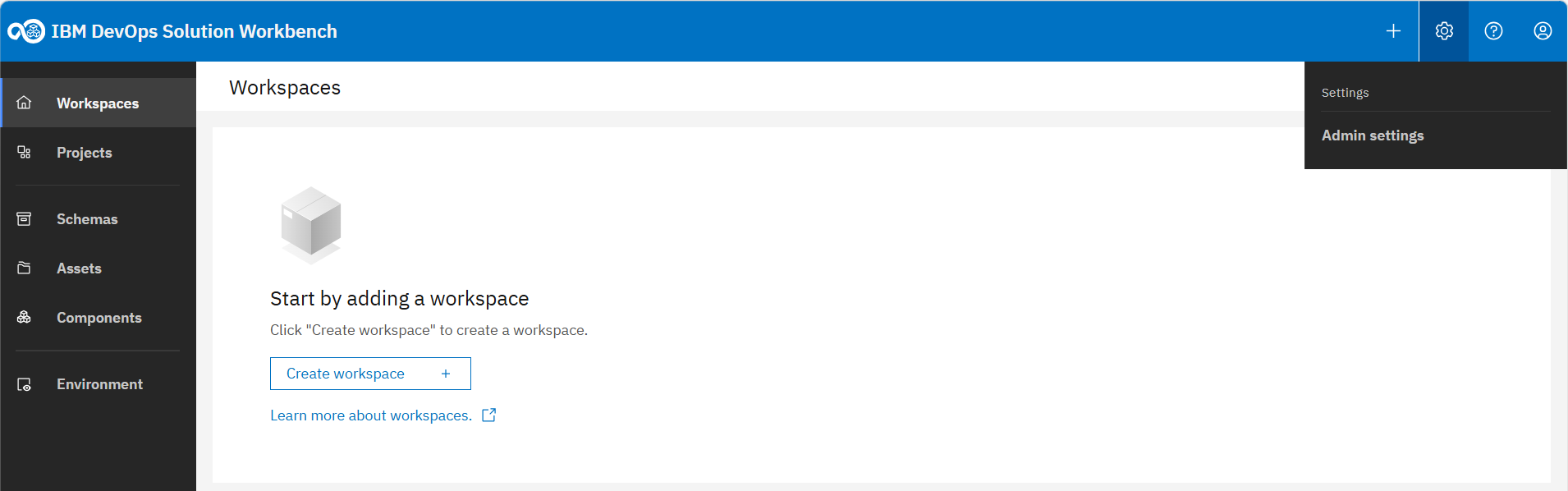
Click on the gear symbol at the top right and then on "Admin settings".
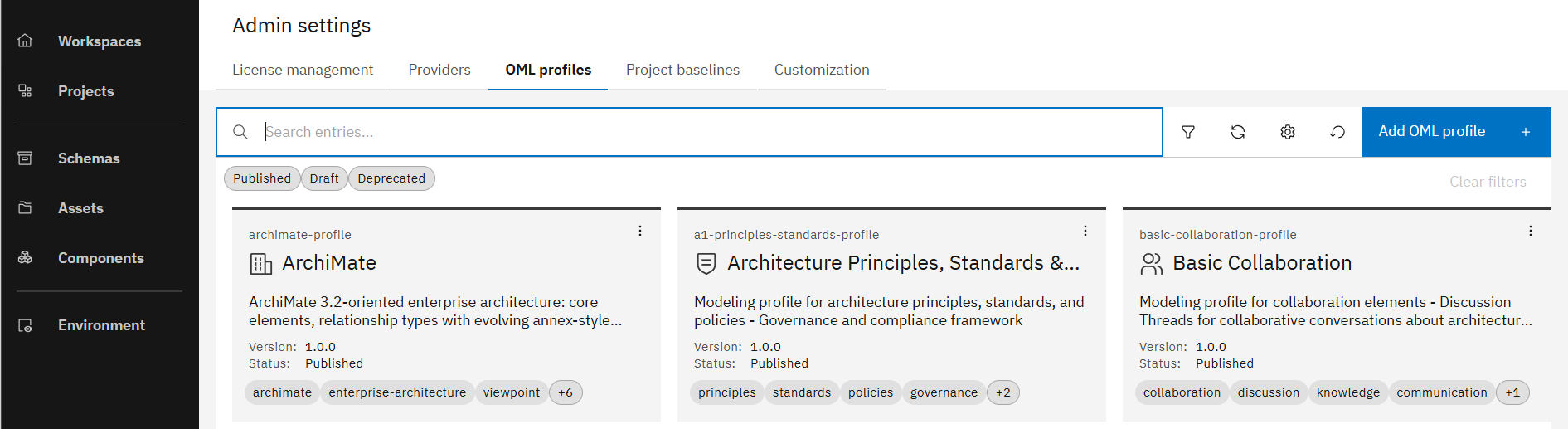
In the Admin settings, switch to tab "OML Profiles" and then click on "Add OML Profile" on the right.
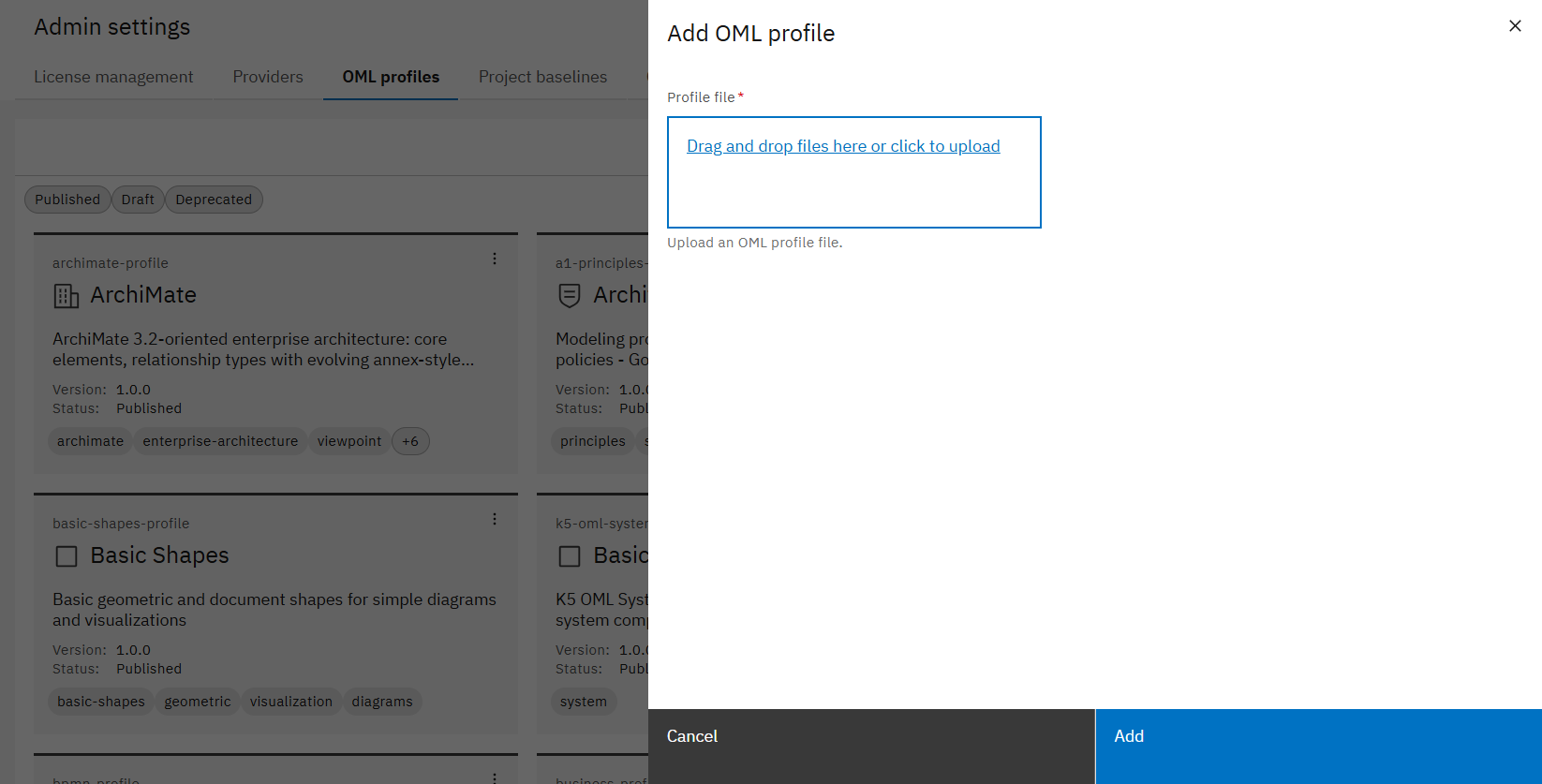
A modal opens where you can upload the file for the OML profile.
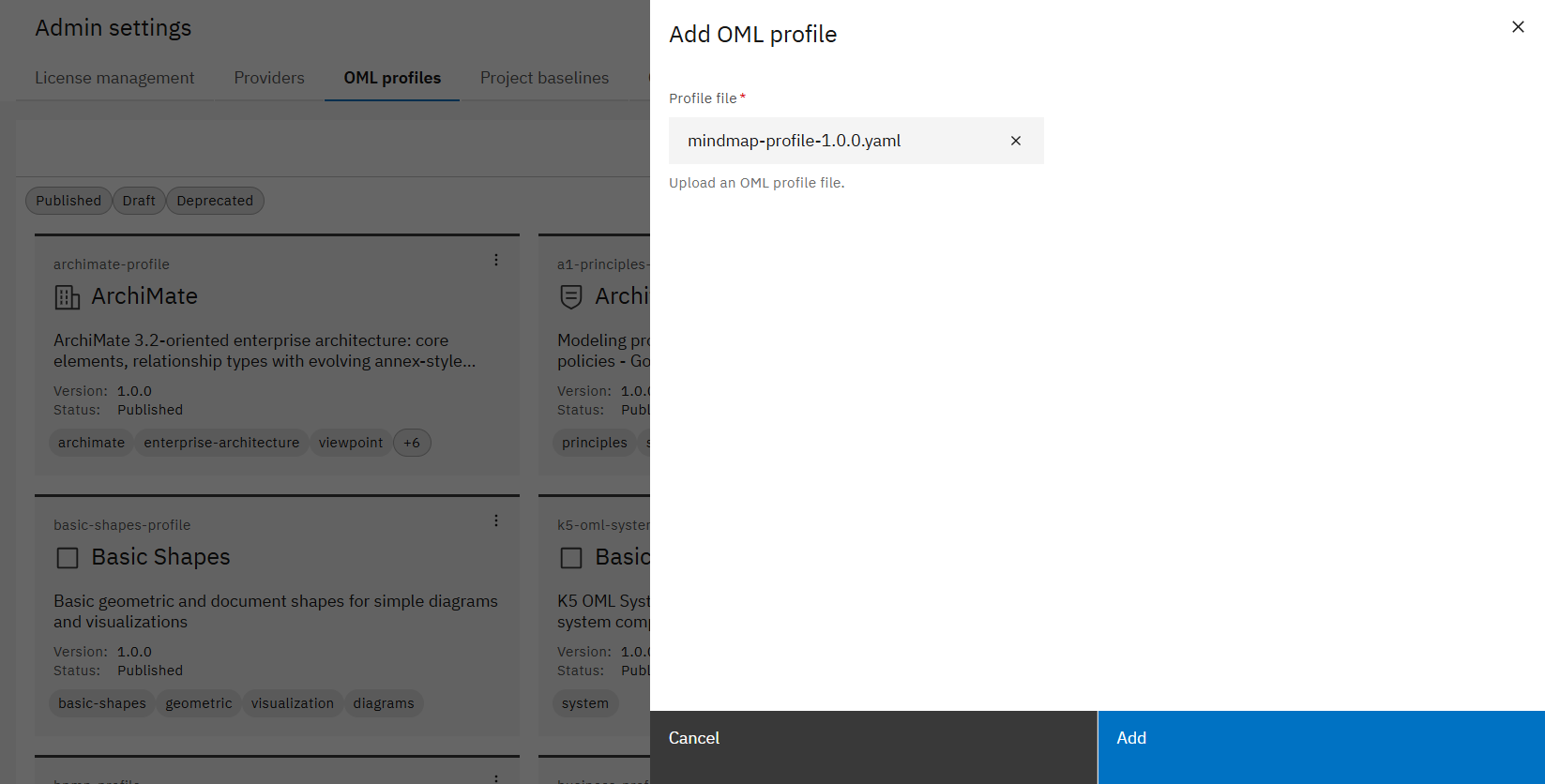
Upload your OML profile file and click on "Add".
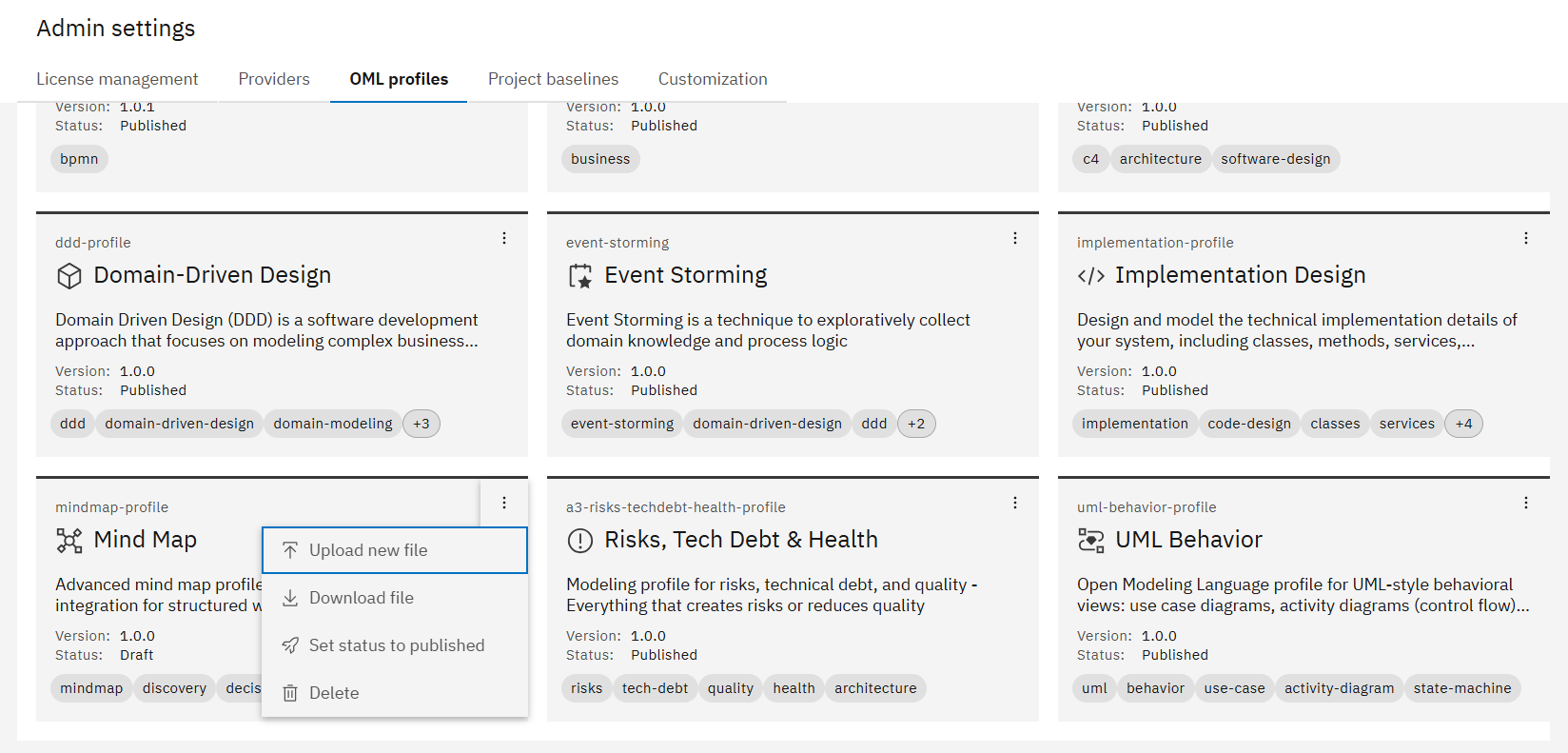
Search for the profile you just uploaded, click on the three dots at the top right corner of the corresponding card and then click on "Set status to published".
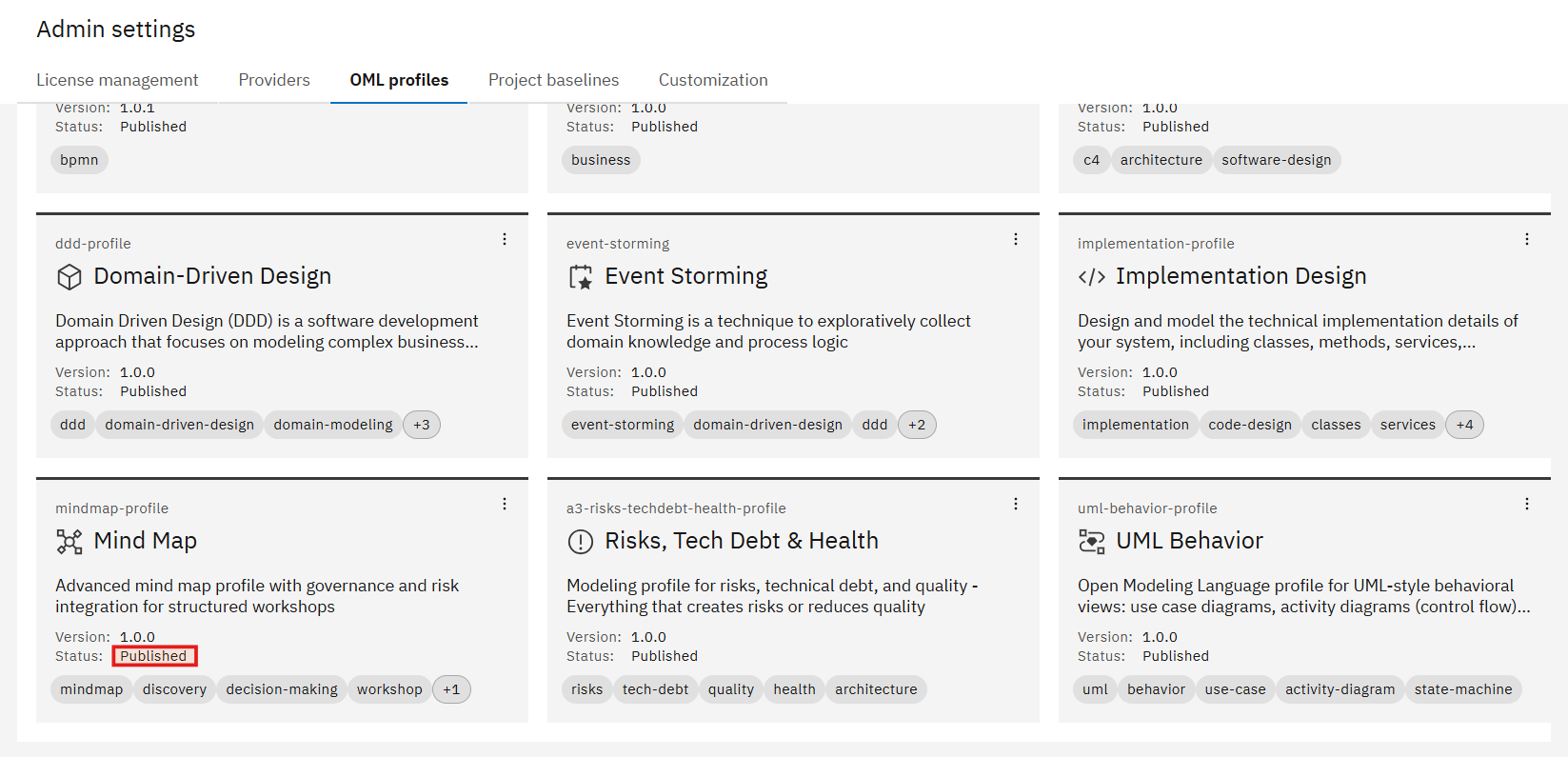
The OML profile is now available for all users in the Workbench.
If you want to see how a custom OML profile is used in a project, check out How-To: Use custom OML Profiles and Project Baselines in Graphical Design.
You have successfully created an OML profile with all its parts (e.g. element types, status enumerations etc.) and made it available in the IBM DevOps Solution Workbench, so that the profile can be referenced in project baselines and used in projects.