Create custom Pipelines in the Workbench
You want to create a custom pipeline tailored to your specific industry needs and operational requirements to enhance efficiency.
Description
This How-To will guide you through the process of creating a custom pipeline for your project. As an exemplary use case, we will configure a pipeline that scans a project's docker image for vulnerabilities by use of the trivy scanner. For this, we will use most of the steps that are part of the IBM DevOps Solution Workbench standard release pipeline, and add an additional step to execute the scanner. After that, we will show how you can select the new pipeline in your Solution Designer.
Steps
Create new task resource
First, you want to create a new task resource to scan an image for vulnerabilities using trivy, that you can later use in your pipeline yaml. For this, open the OpenShift web console and click on the “+” icon in the top right corner, then paste the following content
apiVersion: tekton.dev/v1beta1

kind: Task

metadata:

 annotations:

   tekton.dev/categories: Security

   tekton.dev/displayName: trivy scanner

   tekton.dev/pipelines.minVersion: 0.12.1

   tekton.dev/platforms: 'linux/amd64,linux/arm64,linux/ppc64le,linux/390x'

   tekton.dev/tags: 'CLI, trivy'

 name: k5-trivy-scan

 namespace: YOUR-NAMESPACE

spec:

 description: >

  Trivy is a simple and comprehensive scanner for vulnerabilities in container

   images, file systems, and Git repositories, as well as for configuration

   issues.
This task can be used to scan for vulnerabilities on the source code in

   stand-alone mode.

 params:

   - description: The Arguments to be passed to Trivy command.

     name: ARGS

     type: string

   - default: >-

       docker.io/aquasec/trivy@sha256:944a044451791617cc0ed2ee4d1942a4f66b790d527fcd0575a6b399ccbc05a1

     description: Trivy scanner image to be used

     name: TRIVY_IMAGE

     type: string

   - default: 'false'

     description: A flag enabling Air-Gapped mode

     name: AIR_GAPPED_ENABLED

     type: string

   - description: The solution acronym

     name: solutionacronym

     type: string

 steps:

   - env:

       - name: TRIVY_PASSWORD

         valueFrom:

           secretKeyRef:

             key: password

             name: k5-image-registry-binding

       - name: TRIVY_USERNAME

         valueFrom:

           secretKeyRef:

             key: username

             name: k5-image-registry-binding

       - name: URL_REGISTRY

         valueFrom:

           secretKeyRef:

             key: url

             name: k5-image-registry-binding

     image: $(params.TRIVY_IMAGE)

     name: trivy-scan

     resources: {}

     script: >

       #!/usr/bin/env sh


       DIGEST=$(cat

       /workspace/source/artifacts/pack-solution-docker/image-digest)

       IMAGE_PATH="${URL_REGISTRY}/solution-$(params.solutionacronym)@${DIGEST}"


       cmd="trivy image $(params.ARGS) "


       if [ "$(params.AIR_GAPPED_ENABLED)" = "true" ]; then

         echo "Air-Gapped mode enabled"

         TRIVY_TEMP_DIR=$(mktemp -d)

         trivy --cache-dir "$TRIVY_TEMP_DIR" image --download-db-only

         tar -cf ./db.tar.gz -C "$TRIVY_TEMP_DIR/db" metadata.json trivy.db

         rm -rf "$TRIVY_TEMP_DIR"

         mkdir -p "$HOME"/.cache/trivy/db

         tar xvf ./db.tar.gz -C "$HOME"/.cache/trivy/db

         cmd="${cmd} --skip-update "

       fi


       cmd="${cmd} $IMAGE_PATH"


       echo "Running trivy task with command below"


       echo "$cmd"


       eval "$cmd"

 workspaces:

   - name: source
Adjustments in yaml file
Most of this content is copied of the yaml that can be found here. You only need to make a few adjustments to this yaml to make it work with your setup.
- Change the task's name to “k5-trivy-scan", according to the other tasks commonly used in IBM DevOps Solution Workbench pipeline resources.
- Change the value for “workspace” to “source”, since this is used in the previous steps in your pipeline (this will be explained later in the step "Create the pipeline yaml").
Please make sure you have the required access to get the information of the image's path
- In the params section, don't define a value for “IMAGE_PATH”, because this variable will be created in the script section. Instead, define the parameter “solutionacronym”, required in the script part, which we need to pass from the pipeline yaml.
- Then, add an “env” section and define "TRIVY_PASSWORD", "TRIVY_USERNAME" and "URL_REGISTRY". These values are necessary for the script and are read from the secret with the name “k5-image-registry-binding". The values for password and username are needed for the trivy command to scan the image and are read automatically from environment variables in the “env” section.
- In the script, define two variables “DIGEST” and “IMAGE_PATH”. The digest is required to identify the correct image and is stored under (artifacts/pack-solution-docker/image-digest) in the “source” workspace, which is set the previous task in your pipeline. Then build the image path based on the available parameters.
With these changes, you can save the file, and it will then be available as a task resource that you can reference in your pipeline.
Create the pipeline yaml
For this, copy the necessary steps from the existing release pipeline and create a new pipeline yaml based on that. In the OpenShift web console, go to the Pipelines tab. Here you can search by label for the pipeline templates that are used in the Solution Designer by entering the search term “k5-pipeline-template=true”:
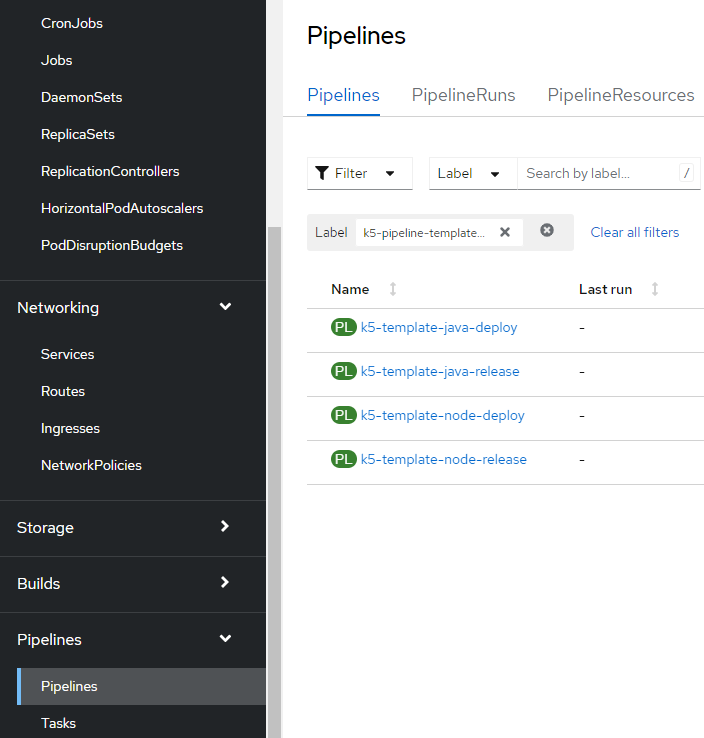
Now you should see the deploy and release pipeline templates for Java and Node projects. For this use case, we want to scan images build from Java projects. To do this, please follow these steps:
-
Copy the entire content of the
k5-template-java-releaseand create a new OpenShift resource by clicking the ”+” icon again in the web console. -
Paste the content as is and modify the yaml as desribed in next steps .
-
From the metadata section, remove
resourceversion,uid,creationTimestamp,generationandmanagedFields. -
Change the value for
nameto what you want it to be called in the OpenShift web console, in this casek5-template-trivy-scan. -
Remove all labels except
k5-pipeline-templateandk5-pipeline-type. -
Set
k5-pipeline-templatetotrueto be selectable in the Solution Designer. -
For
k5-pipeline-typeplease choosecustom.The other two possibilities are either
release, which allows you to setPipeline featuresin the Solution Designer pipeline configuration, anddeploy, which you can choose in case you want to specify a deployment target in the pipeline configuration. For the pipeline typecustom, there are no additional configuration possibilities available. -
Remove the last task in the yaml
k5-build-publish-chart-java, since we're only interested in scanning the created image for this use case and don't need to publish a helm chart. -
The
publishparameter can be removed from the params section, since this is only used in the last task of the release pipeline, which was previously removed in the yaml.
Add required configuration
Now, you need to add the configuration required to execute the trivy scan task that you previously created:
- First, change the name to
k5-template-java-scan. - The value for
k5-display-namewill be changed toScan pipeline, which will be the pipeline's name in the Solution Designer . - Add the
ARGSparameter, which passes any arguments you want to set in the scanner. Set it to--format jsonas a default, so that the output is formatted as a JSON string. - Add the parameter
TRIVY_IMAGEcontaining the path to the public trivy scanner image. - Add the parameter
AIR_GAPPED_ENABLED, used in the task's script, and set it tofalseby default. - Under tasks, add a new entry, which will reference the task previously created. Here, pass the necessary parameters, which are the three ones previously added in the params section, plus
solutionacronym, which is required in order to build the image path. This task needs to be executed after thek5-build-publish-image-javatask and requires access to thesourceworkspace, used in the pipeline's previous tasks.
With these changes, the pipeline yaml should look like this:
apiVersion: tekton.dev/v1beta1

kind: Pipeline

metadata:

  annotations:

    k5-display-name: Scan pipeline

    k5-supported-stacks: java

  name: k5-template-java-scan

  namespace: banking-solutions

  labels:

    k5-pipeline-template: 'true'

    k5-pipeline-type: custom

spec:

  params:

    - default: '--format json'

      description: The Arguments to be passed to Trivy command

      name: ARGS

      type: string

    - default: >-

        docker.io/aquasec/trivy@sha256:944a044451791617cc0ed2ee4d1942a4f66b790d527fcd0575a6b399ccbc05a1

      description: Trivy scanner image to be used

      name: TRIVY_IMAGE

      type: string

    - default: 'false'

      description: A flag enabling Air-Gapped mode

      name: AIR_GAPPED_ENABLED

      type: string

    - description: Defines the repository url

      name: repo-url

      type: string

    - description: Defines the revision of the git repository

      name: revision

      type: string

    - description: Defines the stack

      name: stack

      type: string

    - description: Defines if unit tests should be executed

      name: unittestfeature

      type: string

    - description: Defines whether it needs to be a unique pre-release

      name: prereleaseuniqueness

      type: string

    - description: Defines where uniqueness needs to be enforced

      name: enforceuniqueness

      type: string

    - description: Defines the solution acronym

      name: solutionacronym

      type: string

    - description: Defines whether a unique semVer check is executed

      name: uniquesemvercheck

      type: string

  tasks:

    - name: k5-git-clone

      params:

        - name: repo-url

          value: $(params.repo-url)

        - name: revision

          value: $(params.revision)

      taskRef:

        kind: Task

        name: k5-git-clone

      workspaces:

        - name: output

          workspace: source

        - name: basic-auth

          workspace: basic-auth

    - name: k5-validate

      params:

        - name: solutionacronym

          value: $(params.solutionacronym)

        - name: stack

          value: $(params.stack)

        - name: prereleaseuniqueness

          value: $(params.prereleaseuniqueness)

        - name: uniquesemvercheck

          value: $(params.uniquesemvercheck)

        - name: enforceuniqueness

          value: $(params.enforceuniqueness)

      runAfter:

        - k5-git-clone

      taskRef:

        kind: Task

        name: k5-validate

      workspaces:

        - name: source

          workspace: source

    - name: k5-generate-code-java

      params:

        - name: solutionacronym

          value: $(params.solutionacronym)

        - name: stack

          value: $(params.stack)

      runAfter:

        - k5-validate

      taskRef:

        kind: Task

        name: k5-generate-code-java

      workspaces:

        - name: source

          workspace: source

    - name: k5-build-application-java

      params:

        - name: solutionacronym

          value: $(params.solutionacronym)

        - name: stack

          value: $(params.stack)

        - name: unittestfeature

          value: $(params.unittestfeature)

      runAfter:

        - k5-generate-code-java

      taskRef:

        kind: Task

        name: k5-build-application-java

      workspaces:

        - name: source

          workspace: source

    - name: k5-build-publish-image-java

      params:

        - name: solutionacronym

          value: $(params.solutionacronym)

        - name: stack

          value: $(params.stack)

      runAfter:

        - k5-build-application-java

      taskRef:

        kind: Task

        name: k5-build-publish-image-java

      workspaces:

        - name: source

          workspace: source

    - name: k5-trivy-scan-java

      params:

        - name: ARGS

          value: $(params.ARGS)

        - name: TRIVY_IMAGE

          value: $(params.TRIVY_IMAGE)

        - name: AIR_GAPPED_ENABLED

          value: $(params.AIR_GAPPED_ENABLED)

        - name: solutionacronym

          value: $(params.solutionacronym)

      runAfter:

        - k5-build-publish-image-java

      taskRef:

        kind: Task

        name: k5-trivy-scan

      workspaces:

        - name: source

          workspace: source

  workspaces:

    - name: source

    - name: basic-auth
Now you can save this file, and it will be added as a template for pipeline resources. Since the yaml file contains the value java for k5-supported-stacks, it will be available for Java projects.
When you open a Java project in the Solution Designer and go to the CI/CD tab, you can create a new pipeline configuration and choose your Scan pipeline:
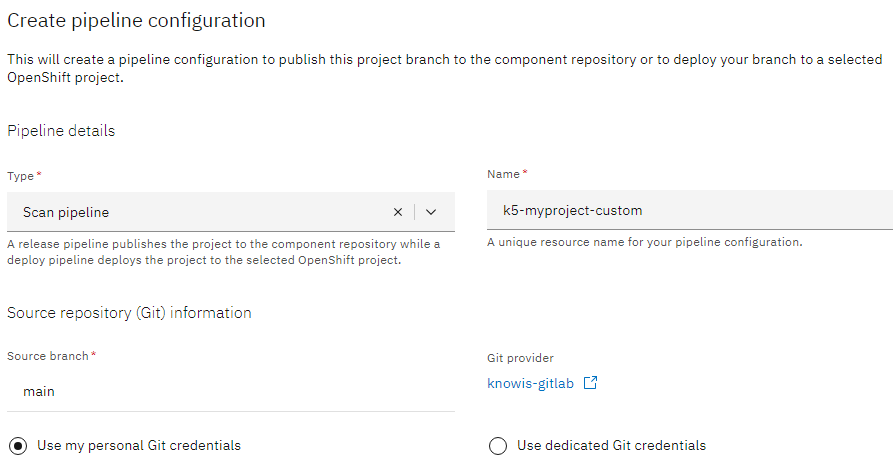
To see the results of the scanner, you can simply check the pipeline run's logs in the OpenShift web console.
You have successfully created a custom pipeline in your project.