Run Java Services locally by mirrord
You want to run Java services built with the Workbench locally by use of the tool mirrord.
For an alternative approach, you may find the Debug Applications guide helpful. It provides an overview of setting up and performing remote debugging for a Java-based service. This guide outlines two methods: remote debugging setup and local debugging using profiles.
Description
This How-To describes how you can run Java services built with the Workbench locally by use of the tool mirrord. In this how-to, we will show you how to run mirrord using Windows, Linux, and Mac.
When you run mirrord on your machine, it acts as a proxy between your local development environment and a live application running in a Kubernetes cluster.
How mirrord works
-
Mirroring Network Traffic When you run mirrord, it connects your local application to a Kubernetes pod in your cluster. Whenever the mirrord process is started, it deploys an agent running in a pod in your cluster. The agent forwards the incoming and outgoing network traffic of that pod to your local machine, allowing your local app to act as if it’s running in the cloud environment. This is useful for interacting with live services without having to deploy your code every time you make a change. Whenever the mirrord process is terminated, the agent is removed from the cluster.
-
File System Access Mirrord also forwards file system access. When your local app tries to read or write files, mirrord ensures that these operations interact with the pod's file system. This means that if your application depends on configuration files, logs, or other data present in the Kubernetes pod, your local app can still function as if those resources are available.
-
Non-Intrusive Debugging Mirrord allows you to debug and test your local code without affecting the live application running in the Kubernetes cluster. You can make changes to your code locally, and mirrord forwards only what’s needed, like traffic and filesystem interactions, without disturbing the live environment. It’s a useful tool for debugging complex microservices or production systems in real time.
-
Efficient Local Development By using mirrord, it’s possible to work on small, isolated parts of a larger system in a local environment, while still interacting with the larger architecture deployed in the cloud. This reduces the overhead of deploying code and setting up services locally.
In summary, mirrord lets you test and debug your code locally while interacting with a live Kubernetes environment, as if your local app is running inside the cluster. It forwards traffic and file system operations between the cloud and your machine.
We’re using the free version for this How-to, with this it is not possible for multiple people to run a mirrord process for the same pod simultaneously.
Run mirrord in Windows and Linux
Since the mirrord plugin does not work on Windows, we run the mirrord process in WSL. This means:
- The service you want to run will be executed inside the WSL environment.
- M irrord will create a pod in your Kubernetes cluster, running an agent for that service.
- Traffic from the cluster pod will be forwarded to your service running in WSL, ensuring it has full context from the live environment.
- You'll start a remote debugging session between WSL and your local machine, allowing you to debug the service running in WSL with your local IDE.
Steps to Run a Service Locally in WSL with mirrord
In this section we will describe the individual steps necessary to run the Java service in your WSL. For convenience, we have automated all these steps and wrote an executable shell script that can be found at the end of this section.
-
Cluster Configuration: The Kubernetes cluster needs to be configured to allow traffic for the mirrord agent. This ensures the agent can forward traffic to your local service. One important thing to take care of if your cluster is running on OpenShift, is to set the security policy by running the following command to enable mirrord to create pods:
oc adm policy add-scc-to-user privileged -n ${YOUR_NAMESPACE} -z default -
Install WSL on Windows 10 and 11 (You can skip this step if you already have WSL installed on your machine)
Step 1: Enable WSL Feature Open PowerShell as Administrator and right-click the start button. Then select Windows Terminal (Admin) or PowerShell (Admin). In the PowerShell window, type the following command and press Enter:
wsl --installThis command will enable the necessary WSL features, install the default Linux distribution (usually Ubuntu), and configure the environment.
Step 2: Enable WSL Feature Once the installation process completes, you will be prompted to restart your computer to finish setting up WSL.
Step 3: Set Up the Linux Distribution After restarting, WSL will continue with the installation. You’ll see a terminal window pop up to finish installing the Linux distribution. Follow the prompts to create a new Linux user account, including setting a username and password. The Linux distribution will now be set up and ready to use.
Step 4: Launch WSL
You can now launch your Linux distribution anytime by doing the following:
- Open Start Menu, type the name of your Linux distribution (e.g., "Ubuntu"), and press Enter.
- Alternatively, open PowerShell and type:
wslStep 5: Install WSL 2
By default, WSL installs the latest version (WSL 2) with full Linux kernel support. If you need to manually switch or ensure WSL 2 is enabled, run the following command:
wsl --set-default-version 2 -
Install the mirrord CLI:
Step 1: Update and Upgrade WSL
Before installing mirrord, ensure your Linux environment is up to date by doing the following: Open WSL: Launch your preferred Linux distribution (e.g., Ubuntu) from the Start menu or via PowerShell by typing wsl. Update and upgrade the package lists by running the following commands
sudo apt update && sudo apt upgrade -yStep 2: Install Dependencies
Mirrord requires some dependencies like curl or wget to download the installation script, as well as unzip. Run the following command to install them:
sudo apt install curl unzip -yStep 3: Install mirrord CLI
To install mirrord, you'll need to download and run the official installation script from MetalBear. Follow these steps:
- First thing you need to do is to install the required dependencies to be able to install the homebrew package manager
sudo apt-get install build-essential curl file git - Then you can install Homebrew using the official installation script. Run the following command
/bin/bash -c "$(curl -fsSL https://raw.githubusercontent.com/Homebrew/install/HEAD/install.sh)" - Verify that Homebrew is installed correctly by running:
brew –version- Download mirrord by running this command:
brew install metalbear-co/mirrord/mirrordThis will install the mirrord CLI to your WSL environment.
Step 4: Add mirrord to PATH (if necessary)
After the installation, the mirrord binary might not be in your system’s PATH by default. You can add it manually by doing the following:
- Open your ~/.bashrc file:
nano ~/.bashrc- Add the following line to ensure that the directory containing mirrord is part of your PATH:
export PATH="$HOME/.local/bin:$PATH"- Save and exit the file, then run the following to apply the changes:
source ~/.bashrcStep 5: Verify Installation
To verify that mirrord CLI is installed successfully, run:
mirrord –version - First thing you need to do is to install the required dependencies to be able to install the homebrew package manager
-
Configure mirrord with a config.json file. You need a config.json file that defines the mirrord configuration, follow the next steps
- Set "steal" mode to grab network traffic from the cluster and forward it to your WSL service.
- Specify the deployment and namespace of your target service in the cluster.
- Add necessary file paths in the "fs" section for resources like the truststore file, ensuring your service runs within the context of the pod.
-
Build and Run the Service in WSL:
Use the Maven package command to create a JAR file of the service you want to run in WSL:
mvn package -DskipTests
This generates a JAR file in the target folder of your project.
- Keystore Configuration for Secure Communication Since your services run in secure mode by default in the cluster, you need a local keystore file that contains the same certificate used in the cluster. Extract Java options from the running pod's logs to access the required parameters for the truststore. Then pass these parameters as Java options when running your JAR file.
The entire setup can be automated with a script:
#!/bin/bash
# Function to update or create config.json
create_or_update_config() {
  CONFIG_FILE="config.json"
  DEPLOYMENT=$1
  NAMESPACE=$2
  # Check if config.json exists
  if [ -f "$CONFIG_FILE" ]; then
    echo "Updating config.json..."
    # Update deployment and namespace
    sed -i.bak -e "s|\"path\": \"deployment/[^ ]*\"|\"path\": \"deployment/$DEPLOYMENT\"|" \
               -e "s|\"namespace\": \"[^\"]*\"|\"namespace\": \"$NAMESPACE\"|" \
               "$CONFIG_FILE"
  else
    echo "Creating new config.json..."
    # Create config.json with provided deployment and namespace
    cat <<EOL > $CONFIG_FILE
{
  "target": {
    "path": "deployment/$DEPLOYMENT",
    "namespace": "$NAMESPACE"
  },
  "feature": {
    "network": {
      "incoming": {
        "mode": "steal"
      }
    },
    "fs": {
      "mode": "read",
      "read_only": [
        "/opt/k5/application/cert/key.p12",
        "/opt/k5/application/cert/trust.jks"
      ]
    }
  }
}
EOL
  fi
}
# Function to get Java PID with correct JAVA_OPTIONS
get_java_pid() {
  POD_NAME=$1
  NAMESPACE=$2
  # List PIDs in pod and handle errors
  PIDS=$(kubectl -n "$NAMESPACE" exec "$POD_NAME" -- sh -c "ls /proc | grep '^[0-9]'")
  if [ -z "$PIDS" ]; then
    echo "Error: No PIDs found in pod $POD_NAME." >&2
    return 1
  fi
  # Loop through each PID and check if it matches the required command
  for PROCID in $PIDS; do
    if kubectl -n "$NAMESPACE" exec "$POD_NAME" -- sh -c "cat /proc/${PROCID}/cmdline" 2>/dev/null | tr -d '\0' | grep -E "java.*app\.jar$" >/dev/null 2>&1; then
      echo "$PROCID"  # Return the matching PID
      return 0
    fi
  done
  echo "Error: No Java process found" >&2
  return 1
}
# Function to extract pod name from deployment
get_pod_name() {
  DEPLOYMENT=$1
  NAMESPACE=$2
  kubectl get pods -n "$NAMESPACE" -l "app=$DEPLOYMENT" -o jsonpath="{.items[0].metadata.name}"
}
# Function to extract Java options from pod logs
get_java_options() {
  POD_NAME=$1
  NAMESPACE=$2
  PID=$3
  JAVA_OPTIONS=$(kubectl -n "$NAMESPACE" exec "$POD_NAME" -- sh -c "cat /proc/${PID}/cmdline | sed 's/^java//' | sed 's/-cp.*//' | sed 's/-D/ -D/g' | sed 's/--add-opens/ --add-opens/g' | sed 's/--add-opens\([^=]\)/--add-opens \1/g'")
  echo "$JAVA_OPTIONS"
}
# Function to package the project with Maven if required
package_project() {
  PROJECT_FOLDER=$1
  SHOULD_PACKAGE=$2
  JAR_FILE=$(find "$PROJECT_FOLDER/target" -name "*.jar" -print -quit)
  if [[ "$SHOULD_PACKAGE" == "true" || -z "$JAR_FILE" ]]; then
    echo "Running Maven package..."
    cd "$PROJECT_FOLDER" || exit
    mvn package -DskipTests
    cd - || exit
  else
    echo "Skipping Maven package..."
  fi
}
# Function to create a keystore file
create_local_keystore() {
  POD_NAME=$1
  NAMESPACE=$2
  KEYSTORE_PATH="key.p12"
  OTHER_SCRIPT="./create-keystore.sh"
  # Check if key.p12 exists
  if [ ! -f "$KEYSTORE_PATH" ]; then
    echo "key.p12 does not exist in $KEYSTORE_PATH."
    # Check if the other script exists
    if [ -f "$OTHER_SCRIPT" ]; then
      echo "Running $OTHER_SCRIPT..."
      bash "$OTHER_SCRIPT" "$POD_NAME" "$NAMESPACE"
    else
      echo "Error: $OTHER_SCRIPT not found!"
    fi
  else
    echo "key.p12 already exists in $KEYSTORE_PATH."
  fi
}
# Function to run the mirrord process
run_mirrord_process() {
  JAVA_OPTIONS=$1
  PROJECT_FOLDER=$2
  # Find the first jar file in the target directory
  JAR_FILE=$(find "$PROJECT_FOLDER/target" -name "*.jar" | head -n 1)
  if [ -z "$JAR_FILE" ]; then
    echo "Error: No jar file found in target directory."
    exit 1
  fi
  # Run the mirrord process with the extracted Java options
  MIRRORD_CONFIG_FILE=config.json mirrord exec -- java -agentlib:jdwp=transport=dt_socket,server=y,suspend=n,address=localhost:5005 $JAVA_OPTIONS -jar "$JAR_FILE"
}
# Script execution starts here
# Check for required arguments
if [ $# -lt 3 ]; then
  echo "Usage: $0 <deployment> <namespace> <project-folder> [mvn-package-optional:true/false]"
  exit 1
fi
DEPLOYMENT=$1
NAMESPACE=$2
PROJECT_FOLDER=$3
SHOULD_PACKAGE=${4:-false}
# Create or update the config.json file
create_or_update_config "$DEPLOYMENT" "$NAMESPACE"
# Get pod name from deployment
POD_NAME=$(get_pod_name "$DEPLOYMENT" "$NAMESPACE")
if [ -z "$POD_NAME" ]; then
  echo "Error: Could not find pod for deployment $DEPLOYMENT in namespace $NAMESPACE"
  exit 1
fi
echo "Found pod: $POD_NAME"
echo "Fetching Java Process Id ..."
# Find the PID with the correct JAVA_OPTIONS
PID=$(get_java_pid "$POD_NAME" "$NAMESPACE")
if [ -z "$PID" ]; then
  echo "Error: Could not find a suitable process with the required JAVA_OPTIONS."
  exit 1
fi
echo "Found process ID: $PID"
# Extract Java options from the pod using the found PID
JAVA_OPTIONS=$(get_java_options "$POD_NAME" "$NAMESPACE" "$PID")
KEYSTORE_PARAMETERS="-Dserver.ssl.enabled=true -Dserver.ssl.key-store-type=PKCS12 -Dserver.ssl.key-store=key.p12 -Dserver.ssl.key-store-password=server -Dserver.ssl.key-alias=servicekey"
if [ -z "$JAVA_OPTIONS" ]; then
  echo "Error: Could not extract Java options from pod logs."
  exit 1
fi
echo "Extracted Java options: $JAVA_OPTIONS"
# Create the keystore
create_local_keystore "$POD_NAME" "$NAMESPACE"
# Create the local application.yaml
package_project "$PROJECT_FOLDER" "$SHOULD_PACKAGE"
# Run the mirrord process with the extracted Java options
run_mirrord_process "$JAVA_OPTIONS $KEYSTORE_PARAMETERS" "$PROJECT_FOLDER"
The script will check the config.json and the local keystore file and create them if not existant. If the config.json already exists, it will update it if necessary. Then, it will package the project into a JAR file (if not already existing) and extract the necessary Java options from the running pod in the cluster. You can choose to reuse an existing JAR file or create a new one by passing an optional parameter. The script will start the mirrord process for the first available pod of the specified deployment. The keystore creation is handled by a separate script called “create-keystore.sh” (the name is directly referenced in the initial script, therefore be careful in case you want to change the name). This second script is automatically called by the initial script when needed. Make sure to place this script in the same directory as the initial script. This script extracts the TLS certificate and key from the cluster pod and uses them to generate a local keystore.
#!/bin/bash
PODNAME="$1"
NAMESPACE="$2"

# Fixed values for keystore, alias, and password
DST_KEYSTORE_FILE="key.p12"
DST_ALIAS="servicekey"
STORE_PWD="server"

if [[ -z "${PODNAME}" || -z "${NAMESPACE}" ]]; then
  echo "ERROR: Missing required arguments!"
  echo "Usage: $0 <podname> <namespace>"
  exit 1
fi

# Retrieve the TLS key from the pod
kubectl -n "${NAMESPACE}" exec "${PODNAME}" -- cat /etc/k5/security/servicecert/tls.key > ./tls.key
if [[ $? -ne 0 || ! -s "./tls.key" ]]; then
  echo "ERROR: Failed to retrieve tls.key from pod ${PODNAME} in namespace ${NAMESPACE}"
  exit 1
fi

# Retrieve the TLS certificate from the pod
kubectl -n "${NAMESPACE}" exec "${PODNAME}" -- cat /etc/k5/security/servicecert/tls.crt > ./tls.crt
if [[ $? -ne 0 || ! -s "./tls.crt" ]]; then
  echo "ERROR: Failed to retrieve tls.crt from pod ${PODNAME} in namespace ${NAMESPACE}"
  exit 1
fi

# Combine key and certificate to create the PKCS12 keystore
echo "Creating PKCS12 keystore ${DST_KEYSTORE_FILE} with alias ${DST_ALIAS}..."
cat "./tls.key" "./tls.crt" |
openssl pkcs12 -export -out "${DST_KEYSTORE_FILE}" -passout "pass:${STORE_PWD}" -name "${DST_ALIAS}"

RC=$?
if [[ "$RC" != "0" ]]; then
  echo "ERROR: Failed to create PKCS12 keystore [RC=${RC}]"
  exit 1
fi

# Output the keystore name, password, and alias
echo "Keystore successfully created!"
echo "Keystore file: ${DST_KEYSTORE_FILE}"
echo "Keystore password: ${STORE_PWD}"
echo "Keystore alias: ${DST_ALIAS}"
To execute the script, you need to provide three required parameters and one optional parameter:
-
Deployment Name: This specifies the deployment in the Kubernetes cluster of the service you want to run locally. You can find the deployment name in the OpenShift web console under the "Deployments" tab or by checking the solution envoy.
-
Namespace: This defines the OpenShift namespace of the pod.
-
Project Path: This is the path to the project on your local machine that you want to run in WSL.
-
Optional (true): If you pass "true", a new JAR file of the project's current state will be created. If no changes were made or you prefer to use an existing JAR, you can leave this parameter out.
Make sure you run the oc login command in WSL to authenticate with your OpenShift cluster in order to run the script.
If you place your project in the directory that has all other projects, you will not need to type in the full path. You will just need to type in the project name directly in your command.
Run the previous script run-mirrord-script.sh. Ensure the script has execution permissions; you can use chmod +x ./run-mirrord-script.sh:
./run-mirrord-script.sh <deployment> <namespace> <project-folder> [mvn-package-optional:true/false]
Example:
./run-mirrord-script.sh k5-custself banking-solutions-dev CUSTSELF true
Set Up Remote Debugging in Your IDE
After successful execution of the script, the remote debugging configuration needs to be set up in your IDE by the following steps.
-
Create a new run configuration in your IDE and name it (e.g., "WSL Remote").
-
For the Host, set localhost, and for the Port, set 5005.
-
Add the following command-line argument:
-agentlib:jdwp=transport=dt_socket,server=y,suspend=n,address=*:5005
- Set the module classpath to the desired project.
Here is an example setup using IntelliJ:
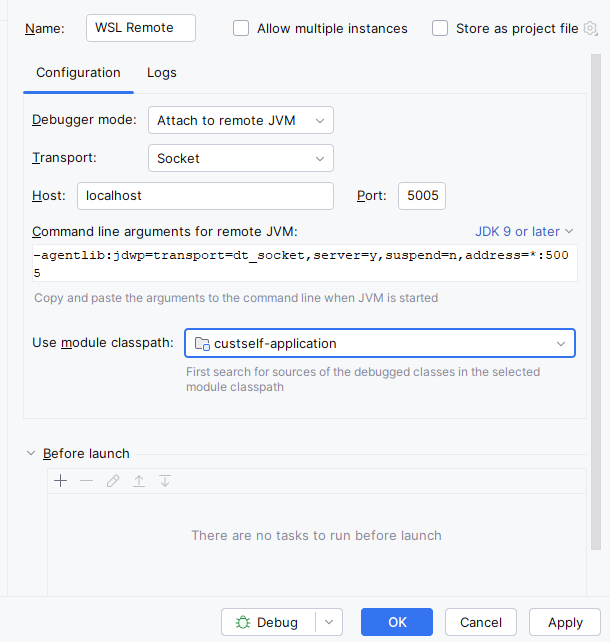
This sets up your IDE to connect remotely to the running service in WSL for debugging. Now you can begin the remote debugging process in your IDE. Set your breakpoints in the code, and as traffic from the Kubernetes cluster is forwarded to your local service in WSL, you'll have full control and context for debugging.
Run mirrod on Mac using IntelliJ Plugin
Prerequisites
- Access to Openshift cluster where the Application POD is running.
- Login to Openshift cluster via CLI.
- In your CLI, you should have the openssl and the kubectl available.
- Download the Mirrord Plugin for IntelliJ from the Marketplace: Mirrord Plugin.
Steps
-
Open your application project in IntelliJ Ensure that the Mirrord option is visible in IntelliJ as you can see in the following image.

-
Run the Mirrord setup script
This will create a .mirrord folder in the project directory, which includes the mirrord.json configuration file needed to connect to the application POD in the OpenShift cluster and a keystore file with the TLS certificate and key required for HTTPS mode. The script output will also provide the Java Options necessary for the application during startup.
Run the following script
#!/bin/bash

# Function to update or create mirrord.json
create_or_update_config() {
  DEPLOYMENT=$1
  NAMESPACE=$2
  PROJECT_FOLDER=$3
  # Define the directory and file path for the mirrord.json
  MIRRORD_DIR="$PROJECT_FOLDER/.mirrord"
  MIRRORD_FILE="$MIRRORD_DIR/mirrord.json"
  # Ensure environment variables are set
  if [[ -z "$DEPLOYMENT" || -z "$NAMESPACE" ]]; then
    echo "Please set DEPLOYMENT and NAMESPACE environment variables."
    exit 1
  fi
  # Create the .mirrord directory if it doesn't exist
  if [[ ! -d "$MIRRORD_DIR" ]]; then
    mkdir -p "$MIRRORD_DIR"
    echo "Created directory: $MIRRORD_DIR"
  fi
  # If mirrord.json exists, notify that it will be updated
  if [[ -f "$MIRRORD_FILE" ]]; then
    echo "$MIRRORD_FILE exists. Updating with new values..."
  else
    echo "Creating $MIRRORD_FILE..."
  fi
  # Create or update the mirrord.json file
  cat > "$MIRRORD_FILE" <<EOL
{
  "target": {
    "path": "deployment/$DEPLOYMENT",
    "namespace": "$NAMESPACE"
  },
  "feature": {
    "network": {
      "incoming": {
        "mode": "steal"
      }
    },
    "fs": {
      "mode": "read",
      "read_only": [
        "/opt/k5/application/cert/key.p12",
        "/opt/k5/application/cert/trust.jks"
      ]
    }
  },
  "agent": {
      "log_level": "info",
      "json_log": false,
      "image": "ghcr.io/metalbear-co/mirrord:latest",
      "ephemeral": false
  }
}
EOL
  echo "$MIRRORD_FILE has been updated with the provided configuration."
}
# Function to get Java PID with correct JAVA_OPTIONS
get_java_pid() {
  POD_NAME=$1
  NAMESPACE=$2
  # List PIDs in pod and handle errors
  PIDS=$(kubectl -n "$NAMESPACE" exec "$POD_NAME" -- sh -c "ls /proc | grep '^[0-9]'")
  if [ -z "$PIDS" ]; then
    echo "Error: No PIDs found in pod $POD_NAME." >&2
    return 1
  fi
  # Loop through each PID and check if it matches the required command
  for PROCID in $PIDS; do
    if kubectl -n "$NAMESPACE" exec "$POD_NAME" -- sh -c "cat /proc/${PROCID}/cmdline" 2>/dev/null | tr -d '\0' | grep -E "java.*app\.jar$" >/dev/null 2>&1; then
      echo "$PROCID"  # Return the matching PID
      return 0
    fi
  done
  echo "Error: No process found with cmdline containing 'java' and ending with 'app.jar'" >&2
  return 1
}
# Function to extract pod name from deployment
get_pod_name() {
  DEPLOYMENT=$1
  NAMESPACE=$2
  kubectl get pods -n "$NAMESPACE" -l "app=$DEPLOYMENT" -o jsonpath="{.items[0].metadata.name}"
}
# Function to extract Java options from pod logs
get_java_options() {
  POD_NAME=$1
  NAMESPACE=$2
  PID=$3
  JAVA_OPTIONS=$(kubectl -n "$NAMESPACE" exec "$POD_NAME" -- sh -c "cat /proc/${PID}/cmdline | sed 's/^java//' | sed 's/-cp.*//' | sed 's/-D/ -D/g' | sed 's/--add-opens/ --add-opens/g' | sed 's/--add-opens\([^=]\)/--add-opens \1/g'")
  echo "PID: $PID"
  # Append SSL options
  JAVA_OPTIONS="$JAVA_OPTIONS -Dserver.ssl.enabled=true -Dserver.ssl.key-store-type=PKCS12 -Dserver.ssl.key-store=./.mirrord/key.p12 -Dserver.ssl.key-store-password=server -Dserver.ssl.key-alias=servicekey"
  echo "$JAVA_OPTIONS"
}
# Function to create keystore
create_keystore() {
  POD_NAME=$1
  NAMESPACE=$2
  PROJECT_FOLDER=$3
  # Set up .mirrord directory and keystore file path
  MIRRORD_DIR="$PROJECT_FOLDER/.mirrord"
  SERVER_KEYSTORE_FILE="${MIRRORD_DIR}/key.p12"
  # Ensure the .mirrord directory exists
  if [[ ! -d "$MIRRORD_DIR" ]]; then
    mkdir -p "$MIRRORD_DIR"
    echo "Created directory: $MIRRORD_DIR"
  fi
  # If key.p12 already exists, delete it
  if [[ -f "$SERVER_KEYSTORE_FILE" ]]; then
    echo "Keystore $SERVER_KEYSTORE_FILE exists. Deleting it..."
    rm -f "$SERVER_KEYSTORE_FILE"
  fi
  # Fixed values for alias and password
  SERVER_ALIAS="servicekey"
  SERVER_PWD="server"
  # Retrieve the TLS key and certificate from the pod
  kubectl -n "${NAMESPACE}" exec "${POD_NAME}" -- cat /etc/k5/security/servicecert/tls.key > ./tls.key
  kubectl -n "${NAMESPACE}" exec "${POD_NAME}" -- cat /etc/k5/security/servicecert/tls.crt > ./tls.crt
  # Check if both TLS key and certificate were retrieved successfully
  if [[ $? -ne 0 || ! -s "./tls.key" || ! -s "./tls.crt" ]]; then
    rm -f ./tls.key ./tls.crt
    echo "ERROR: Failed to retrieve TLS key or certificate from pod ${POD_NAME} in namespace ${NAMESPACE}."
    echo "Keystore creation failed. Please check if $POD_NAME is accessible."
    echo "Alternatively, you can copy the TLS certificate and key from the pod manually:"
    echo "  - tls.crt: /etc/k5/security/servicecert/tls.crt"
    echo "  - tls.key: /etc/k5/security/servicecert/tls.key"
    echo "Then, use the following OpenSSL command locally to create the keystore:"
    echo "  openssl pkcs12 -export -in tls.crt -inkey tls.key -out key.p12 -name servicekey -passout pass:server"
    echo "Once the keystore is created, place it in the .mirrord directory."
    exit 1
  fi
  # Combine key and certificate to create the PKCS12 keystore
  echo "Creating PKCS12 keystore ${SERVER_KEYSTORE_FILE} with alias ${SERVER_ALIAS}..."
  cat "./tls.key" "./tls.crt" |
  openssl pkcs12 -export -out "${SERVER_KEYSTORE_FILE}" -passout "pass:${SERVER_PWD}" -name "${SERVER_ALIAS}"
  RC=$?
  if [[ "$RC" != "0" ]]; then
    rm -f ./tls.key ./tls.crt
    echo "ERROR: Failed to create PKCS12 keystore [RC=${RC}]"
    echo "Check if openssl is available in your local environment."
    exit 1
  fi
  # Delete the temporary TLS key and certificate files
  rm -f ./tls.key ./tls.crt
  # Output the keystore name, password, and alias
  echo "=================================================================================="
  echo "Keystore successfully created!"
  echo "Keystore file: ${SERVER_KEYSTORE_FILE}"
  echo "Keystore password: ${SERVER_PWD}"
  echo "Keystore alias: ${SERVER_ALIAS}"
  echo "=================================================================================="
}
# Script execution starts here
# Check for required arguments
if [ $# -lt 3 ]; then
  echo "Usage: $0 <deployment> <namespace> <project-folder>"
  exit 1
fi
DEPLOYMENT=$1
NAMESPACE=$2
PROJECT_FOLDER=$3
# Function to check if a command exists
command_exists() {
  command -v "$1" >/dev/null 2>&1
}
# Function to check if Kubernetes namespace is accessible
namespace_accessible() {
  kubectl get namespaces "$1" >/dev/null 2>&1
}
# Check for required commands
if ! command_exists kubectl; then
  echo "ERROR: kubectl is not installed. Please install it and try again."
  exit 1
fi
if ! command_exists openssl; then
  echo "ERROR: openssl is not installed. Please install it and try again."
  exit 1
fi
# Check if the Kubernetes namespace is accessible
if [[ -z "$NAMESPACE" ]]; then
  echo "ERROR: Kubernetes namespace is not specified."
  exit 1
fi
if ! namespace_accessible "$NAMESPACE"; then
  echo "ERROR: Kubernetes namespace $NAMESPACE is not accessible."
  exit 1
fi
# Create or update the config.json file
create_or_update_config "$DEPLOYMENT" "$NAMESPACE" "$PROJECT_FOLDER"
# Get pod name from deployment
POD_NAME=$(get_pod_name "$DEPLOYMENT" "$NAMESPACE")
if [ -z "$POD_NAME" ]; then
  echo "Error: Could not find pod for deployment $DEPLOYMENT in namespace $NAMESPACE"
  exit 1
fi
echo "Found pod: $POD_NAME"
# Find the PID with the correct JAVA_OPTIONS
PID=$(get_java_pid "$POD_NAME" "$NAMESPACE")
if [ -z "$PID" ]; then
  echo "Error: Could not find a suitable process with the required JAVA_OPTIONS."
  exit 1
fi
echo "Found process ID: $PID"
# Extract Java options from pod logs
JAVA_OPTIONS=$(get_java_options "$POD_NAME" "$NAMESPACE" "$PID")
if [ -z "$JAVA_OPTIONS" ]; then
  echo "Error: Could not extract Java options from pod logs."
  exit 1
fi
create_keystore "$POD_NAME" "$NAMESPACE" "$PROJECT_FOLDER"
echo "=================================================================================="
echo "Extracted Java options: $JAVA_OPTIONS"
echo "=================================================================================="
Run the previous script setup-mirrord.sh. Ensure the script has execution permissions; you can use chmod +x ./setup-mirrord.sh:
./setup-mirrord.sh <deployment name> <namespace> <project folder location>
Example:
./setup-mirrord.sh k5-ordapw banking-solutions-dev /Users/xyz/code/ORDAPW
If you place your project in the directory that has all other projects, you will not need to type in the full path. You will just need to type in the project name directly in your command.
-
Copy the Extracted Java Options provided in the script output
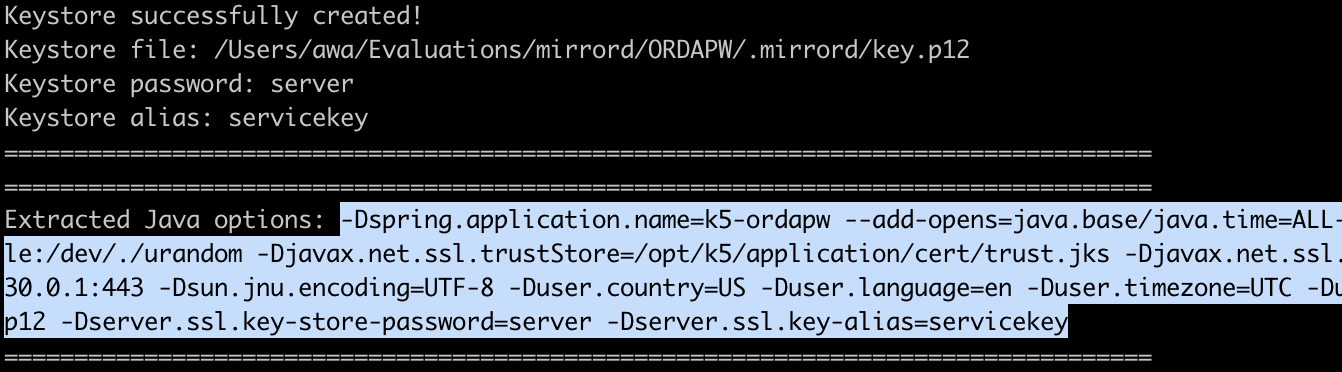
-
Paste the copied Java Options into the VM Options in the Edit/Debug Configurations in IntelliJ
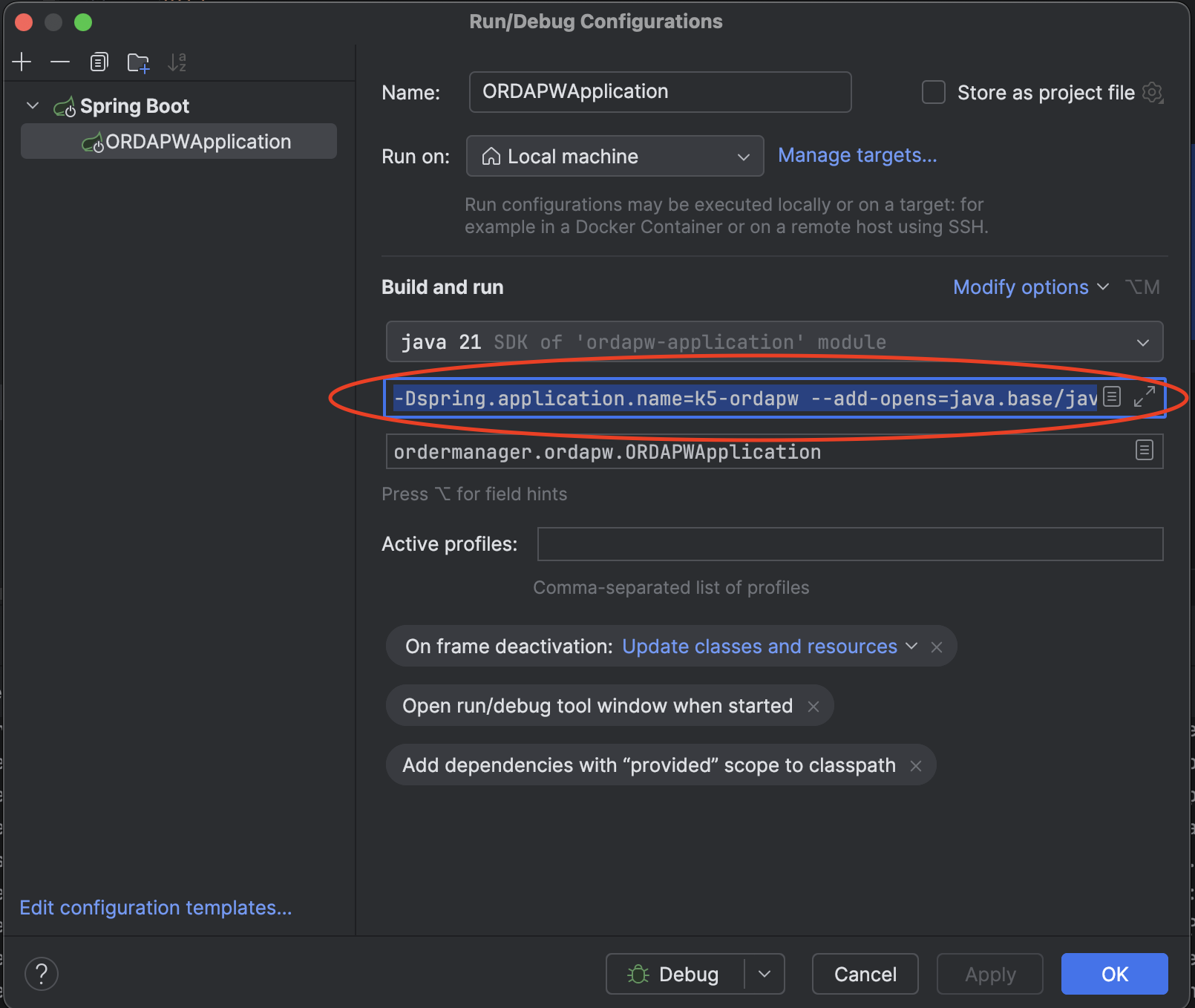
-
Enable the Mirrord option in IntelliJ and run the application in Debug Mode. The application will start in HTTPS mode and be available at https://localhost:8443.

The application now runs locally but in OpenShift Cluster’s context and can connect to Databases and Services running in the cluster. The local running Application also intercepts traffic from the remote POD.
If you access any Application API via the OpenShift route configured for the POD, the traffic will be redirected to your locally running application. You can also access APIs using localhost, e.g., https://localhost:8443/api/* (e.g., https://localhost:8443/api/order/create).
You have successfully learned how to use mirrord to locally debug your Java services built with Workbench.