Access MongoDB from your local Machine
In order to verify whether entities have been persisted correctly you want to connect to the used MongoDB so that you can lookup the data in the database. To do this, a connection to MongoDB from your local machine must be established.
Description
This How-To will cover the necessary steps to setup the appropriate tooling and the instructions on how to use them to get access to the MongoDB database.
Steps
Download necessary tools
For the connection to MongoDB following tools are necessary:
Please note that the software to be downloaded is provided by third parties and we do not take any warranty for that.
Install OpenShift CLI
-
You need to install OpenShift CLI (command line interface). To do this, create a new folder, e.g., 'OpenShift CLI' in
C:\Programs (x86), copy theoc.exein that directory and run it from there. The result is that you will be told to run cmd.exe (what is fine). -
Create an environment property in Windows, pointing to the new created directory:
- Search in Windows (Start menu) for
env(environment variables), enter the system settings and click in opened dialogue on 'Environment variables' - In box 'System variables' select 'Path' and click on 'Edit'
- Choose 'New' in the opened dialogue to enter the path for the new created directory (e.g.,
'C:\Programs (x86)\OpenShift CLI')
Connect to OpenShift
You will have to replace the placeholders <your-openshift-environment-base-url> and <your-openshift-project> with values that represent your environment.
-
Open
https://oauth-openshift.apps.<your-openshift-environment-base-url>/oauth/token/request, log in with your credentials and then click ondisplay token. Copy your individual login token. -
Open
cmd.exevia Windows search, insert your login token into the following command and hit enter
oc login --token={your token} --server=https://api.<your-openshift-environment-base-url>:6443
- Execute the following command:
oc -n <your-openshift-project> port-forward svc/mongodb 27017:27017
You now have successfully configured a port-forward from and to the MongoDB pod. You can now reach the MongoDB via the address localhost:27017.
Install MongoDB Compass and create connection to MongoDB
-
Install MongoDB Compass by running the .exe.
-
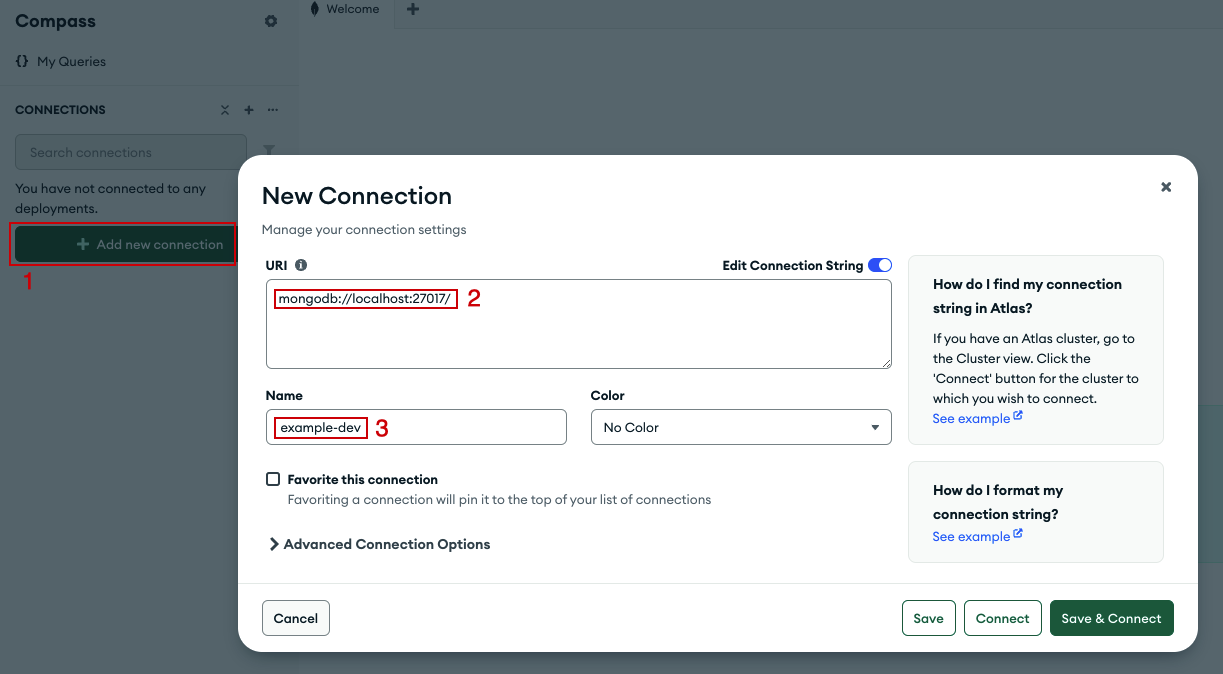
Create a new MongoDB connection as it is shown in the screenshot.
-
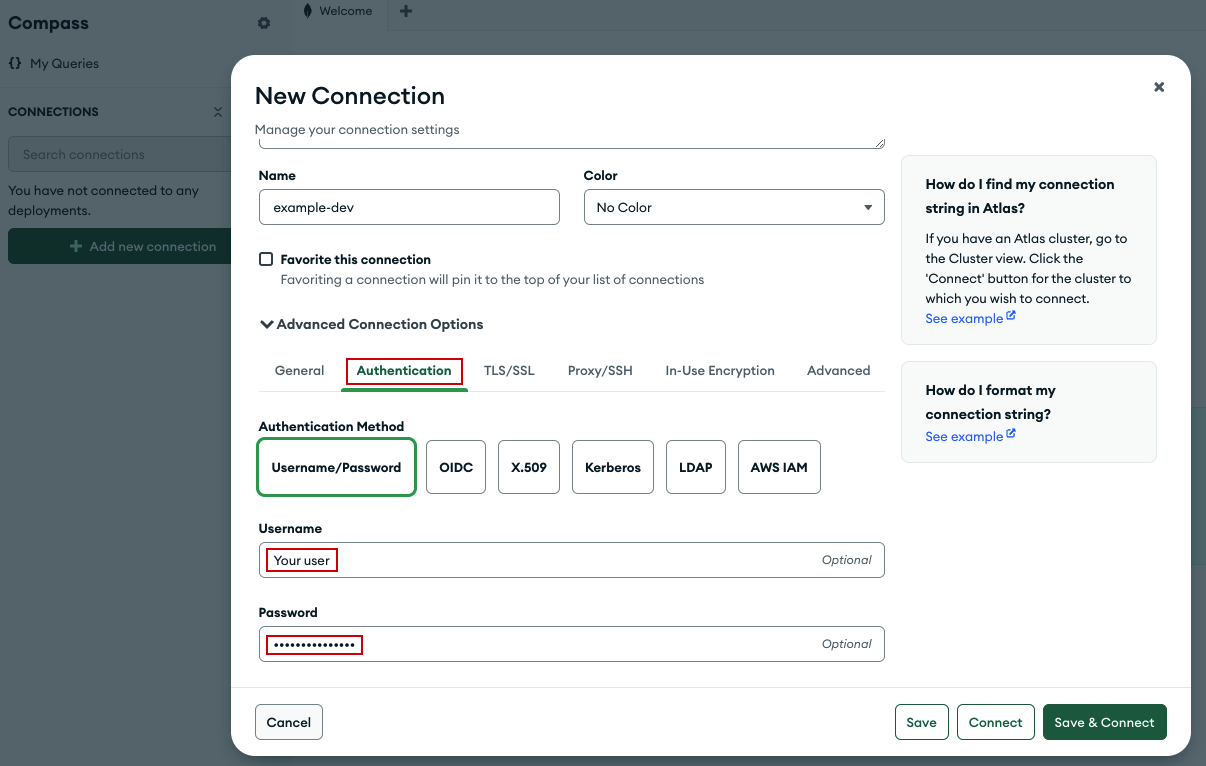
Open the Advanced Connection Options and edit the Authentication seetings (as shown in the following image).
-
Edit the TLS/SSL seetings and connect to MongoDB (as shown in the following image).
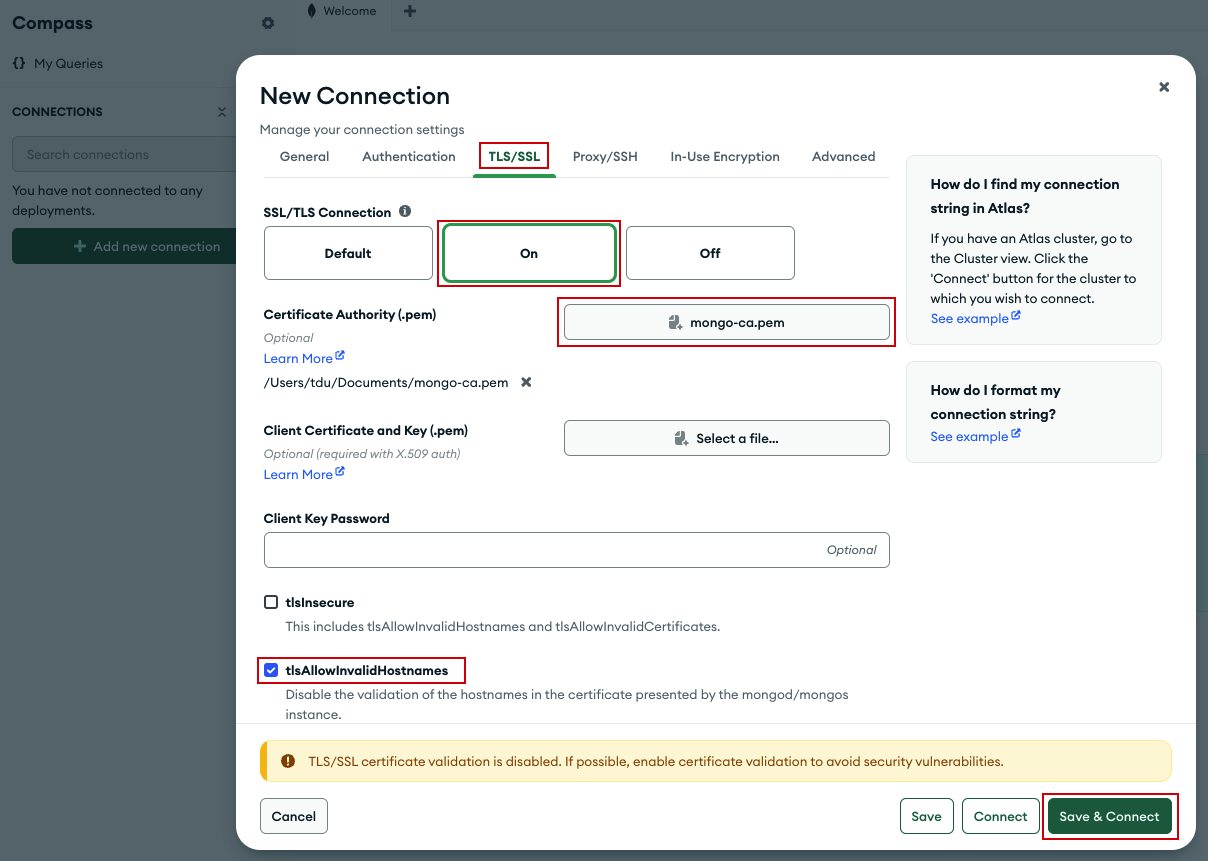
Please contact your administrator for the correct user name and password, as well as for the MongoDB CA certificate. The certificate is found in OpenShift in the MongoDB namespace under the 'Secrets' section.
Here are some points that may need to be adjusted depending on your setup.
Environment specific information
URLs, user names, authentication information etc. depend on the environment you are working on. You have to adjust these accordingly.
Used operating system
This document describes the necessary steps using Microsoft Windows. If you are using an other operating system, you may have to adopt some steps.
You have successfully connected to the MongoDB!