Integrate WatsonX
Integrate IBM WatsonX AI service into your Java application to summarize long texts.
Description
IBM WatsonX is an AI and data platform with a suite of AI assistants designed to help businesses scale and accelerate the impact of AI with trusted data. This How-To demonstrates how to integrate the WatsonX text summarization capabilities into your Java project.
The integration works by calling an HTTP endpoint with your input text, and the service returns a summary as a result. For this example, we're using the endpoint at https://us-south.ml.cloud.ibm.com/ml/v1-beta/generation/text?version=2023-05-29, though your specific URL may vary based on your WatsonX configuration.
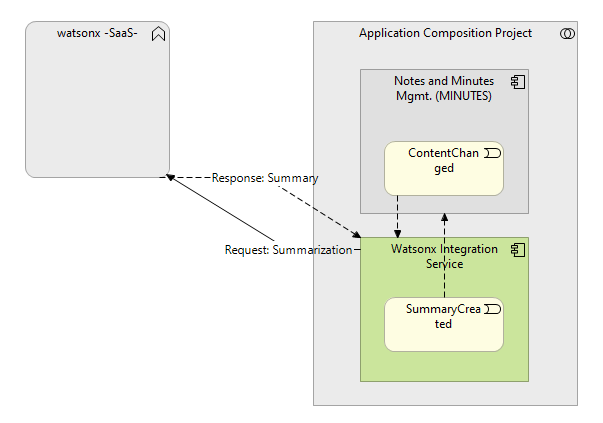
In our use case, we created a dedicated microservice to handle the communication between our existing notes/minutes service and WatsonX, as illustrated below:
Preconditions
- WatsonX Account: A valid account on the IBM WatsonX platform
- Java Development Environment: Your project is built with Java and Spring
- API Access: You need to obtain a project ID and API key from your WatsonX account
Step-by-Step Guide
1. Obtain Project ID and API Key
1.1. Access WatsonX Platform:
- Log in to your IBM WatsonX account
- Navigate to the project settings area
1.2. Create Project:
- Generate a project ID for your application
- Create an API key, which will be needed to retrieve access tokens
2. Set Up Authentication
2.1. Get Access Token:
- For every WatsonX API call, you'll need a valid access token
- The token is retrieved from:
https://iam.cloud.ibm.com/identity/token - Create a request to obtain the token:
    HttpHeaders tokenHeaders = new HttpHeaders();
    tokenHeaders.setContentType(MediaType.APPLICATION_FORM_URLENCODED);

    String tokenRequestData = "grant_type=urn:ibm:params:oauth:grant-type:apikey&apikey=" + apiKey;

    HttpEntity<String> request = new HttpEntity<>(tokenRequestData, tokenHeaders);
2.2. Send the Authentication Request:
- Use RestTemplate to execute the POST request:
    import org.springframework.web.client.RestTemplate;

    RestTemplate restTemplate = new RestTemplate();
    ResponseEntity<String> response = restTemplate.postForEntity(
        "https://iam.cloud.ibm.com/identity/token",
        request,
        String.class
    );
2.3. Extract the Access Token:
- Parse the JSON response to get the access token:
- Look for the key "access_token" in the JSON response
3. Implement Text Summarization
3.1. Prepare the Summarization Request:
- Create headers with the access token:
HttpHeaders headers = new HttpHeaders();
headers.setContentType(MediaType.APPLICATION_JSON);
headers.set("Accept", "application/json");
headers.set("Authorization", "Bearer " + accessToken);
3.2. Build the Request Payload:
- Create the JSON payload with your text and configuration parameters:
String payload = String.format(
        "{"
                + "\"model_id\": \"google/flan-ul2\","
                + "\"input\": \"%s\","
                + "\"parameters\": {"
                + "    \"decoding_method\": \"greedy\","
                + "    \"max_new_tokens\": 300,"
                + "    \"min_new_tokens\": 0,"
                + "    \"stop_sequences\": [],"
                + "    \"repetition_penalty\": 2"
                + "},"
                + "\"project_id\": \"%s\","
                + "\"moderations\": {"
                + "    \"hap\": {"
                + "        \"input\": true,"
                + "        \"output\": true,"
                + "        \"threshold\": 0.5,"
                + "        \"mask\": {"
                + "            \"remove_entity_value\": true"
                + "        }"
                + "    }"
                + "}"
                + "}",
       yourInputText, projectId);

HttpEntity<String> request = new HttpEntity<>(payload, headers);
Make sure to properly escape special characters in your input text, such as backslashes and double quotes, to prevent JSON parsing errors.
3.3. Send the Summarization Request:
- Execute the POST request to the WatsonX API:
RestTemplate restTemplate = new RestTemplate();
ResponseEntity<String> response = restTemplate.postForEntity(
    "https://us-south.ml.cloud.ibm.com/ml/v1-beta/generation/text?version=2023-05-29",
    request,
    String.class
);
3.4. Process the Response:
- Parse the JSON response to extract the summary
- The summary is found in the response under:
results[0].generated_text
4. Customize Summarization Parameters (Optional)
4.1. Adjust Model Parameters:
- Several parameters can be customized in your request to fit your summarization needs:
max_new_tokens: Maximum length of the generated summarymin_new_tokens: Minimum length of the generated summarydecoding_method: Strategy for text generationrepetition_penalty: Controls repetition in the output
4.2. Experiment with the WatsonX Prompt Lab:
- IBM provides a UI for WatsonX to manage your projects
- Use the "Prompt lab" to test different models and parameters
- Export configurations as curl requests for implementation
For more information about IBM WatsonX capabilities and configuration options, visit the official IBM WatsonX documentation.
Conclusion
Congratulations! You have successfully integrated IBM WatsonX with your IBM DevOps Solution Workbench Java solution. Your application can now leverage powerful AI text summarization capabilities to create concise summaries of lengthy content.