Integrate GenAI
Integrate Gen AI service into your Java application.
Description
This How-To Guide explains how we can integrate Gen AI capabilities into a Java service using an existing Asset and Large Language Model (LLM). The Asset Product Recommendations [PRODREC] is a Spring Boot Project with Langchain4j dependency. LangChain4j is added to simplify integrating LLMs into Java applications. To know more about LangChain4j refer to LangChain4j official documentation https://docs.langchain4j.dev/get-started.
The primary use case of this Asset is to generate product recommendations based on a product catalog and a customer's purchase history. The implementation leverages both:
LLM Integration: For generating contextual, natural-language recommendations based on customer behavior and product data.
Vector Database Integration (Optional): For enhanced semantic search and retrieval capabilities using vector embeddings. While not required, this optional component significantly improves response time and recommendation relevance. The Asset supports both ChromaDB and PostgreSQL with pgvector extension for storing and querying embeddings.
The Asset functions with just the LLM integration, but adding vector database capabilities provides both performance improvements and more sophisticated matching. This modular approach lets you start with a basic implementation and add vector capabilities as needed.
Vector databases enhance Gen AI applications by enabling fast semantic similarity searches, which go beyond traditional keyword matching to find conceptually related items. By pre-computing and storing embeddings, vector databases dramatically reduce the processing time needed when responding to queries, resulting in much faster response times compared to generating embeddings on the fly. Nevertheless, please keep in mind that queries to any LLM can still be a time intensive task, depending on how large the input is. Therefore, even when using vector databases, response times can be longer than what is typically expected for e.g. standard REST calls.
Preconditions
- LLM Access : The Asset requires an externally running pretrained LLM for it to work.
It supports integration with both the
Ollama APIand theOpenAI API. To utilize its capabilities, ensure that either an Ollama instance is running with a deployed model or that an active OpenAI subscription is available.
To Deploy a running instance of Ollama in your Openshift or Kubernetes cluster , you can refer to the Ollama helm chart installation provided in this link https://github.com/otwld/ollama-helm/tree/main
If you are using high-end infrastructure with a GPU, you can leverage the larger llaama 3.3 model (43GB) for optimal performance. However, if you are on a lower-end infrastructure without a GPU, consider using smaller models such as llama3.2:3B (2GB) or granite3.1-Dense (5GB) to ensure efficient resource utilisation.
- Vector Database (Optional) : For advanced retrieval capabilities, either: ChromaDB instance https://github.com/chroma-core/chroma PostgreSQL with pgvector extension https://github.com/pgvector/pgvector
Step-by-Step Guide
For using the Asset for Product Recommendations use case:
1. Create a project from the Asset:
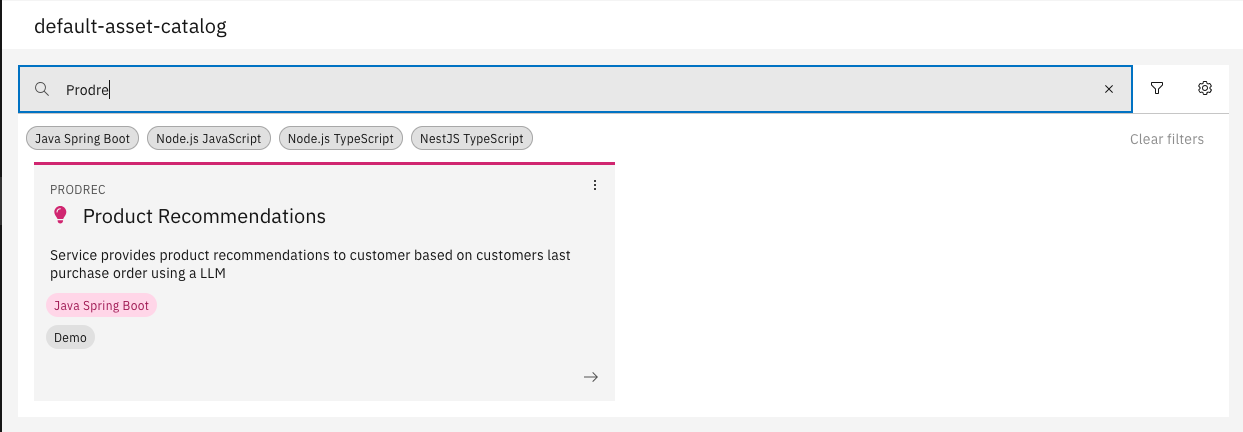
Choose the asset named "Product Recommendations" [PRODREC - v1.0.0] from the default asset catalog
2. Update the environment variables as per your setup:
env:
  variables:
    keyValue:
      - variableName: LLM_MODEL_TYPE
        value: ollama
      - variableName: OPENAI_API_KEY
        value: sk-xxxxx
      - variableName: OPENAI_MODEL
        value: gpt-4-turbo
      - variableName: OLLAMA_BASE_URL
        value: http://ollama-release.demo-llm.svc.cluster.local:11434
      - variableName: OLLAMA_MODEL
        value: llama3.2
      - variableName: PRODUCT_RECOMMENDATION_SYSTEM_PROMPT
        value: |
          You are a product recommendation AI. Your task is to suggest {NO_OF_ITEMS} relevant products to a customer based on their last purchased products.

          **Guidelines for Recommendations:**
          1. The suggested products must be a subset of the available product catalog.
          2. Each recommended product should belong to a different product category.
          3. The recommended products should not be present in the customer's last purchased products list.

          **Output Format (JSON):**
          ```json
          [
            {
              "id": "<product_id>",
              "name": "<product_name>",
              "recommendationReason": "<A customer-friendly reason addressing the customer, explaining why this product is a great choice. This should be based on the actual purchased products.>"
            }
          ]
      - variableName: PRODUCT_RECOMMENDATION_USER_PROMPT
        value: |
          **Available Products in the Product Catalog:**
          {{products}}
          **Customer's Last Purchased Products:**
          {{lastOrderProducts}}
- LLM_MODEL_TYPE : ollama or openai
- OPENAI_API_KEY: (Applicable when using openai API subscription)
- OPENAI_MODEL: (Applicable when using openai API subscription)
- OLLAMA_BASE_URL: (Applicable when using a locally running Ollama installation)
- OLLAMA_MODEL: (Applicable when using a locally running Ollama installation)
- PRODUCT_RECOMMENDATION_SYSTEM_PROMPT: This will be used as a System Prompt for the LLM. The prompt can be modified as per need.
- PRODUCT_RECOMMENDATION_USER_PROMPT:: This will be used as user prompt for the LLM. The prompt can be modified as per need.
3. Configure Vector Database (Optional)
-
If you have a vector database instance running, you can configure it by adding the following environment variables:
- For ChromaDB:
- variableName: EMBEDDING_STORE_TYPE
value: chroma
- variableName: EMBEDDING_STORE_CHROMA_URL
value: http://chroma-chromadb.demo-vectordb.svc.cluster.local:8000 - For PGVector:
- variableName: EMBEDDING_STORE_TYPE
  value: pgvector
- variableName: EMBEDDING_STORE_PGVECTOR_HOST
  value: pgvector-pgvectordb.demo-vectordb.svc.cluster.local
- variableName: EMBEDDING_STORE_PGVECTOR_PORT
  value: 5432
- variableName: EMBEDDING_STORE_PGVECTOR_USER
  value: admin
- variableName: EMBEDDING_STORE_PGVECTOR_PASSWORD
  value: xxxx
- variableName: EMBEDDING_STORE_PGVECTOR_TABLE
  value: product_embeddings
- variableName: EMBEDDING_STORE_PGVECTOR_DATABASE
  value: ragdb
- For ChromaDB:
4. Create integrations to services to get context information for the user prompt.
-
To integrate your services, update the API dependencies in the respective Integration namespaces:
-
Product Service: Modify the API dependency in the
product cataloguenamespace by uploading the OpenAPI specification file of your Product Service. -
Order Service: Similarly, upload the OpenAPI specification file of your Order Service in the
customer ordernamespace.
-
For more information on API modeling, refer to Product Documentation: API Modelling
-
Update Required Methods
After adding the dependencies, update the following methods to replace Java Models.
Product Catalog Integration
executeMethod inGetAllProductsclasspublic GetAllProductsOutput execute(GetAllProductsInput entity) {
log.info("Executing GetAllProducts");
ResponseEntity<CatalogItem[]> productResponseEntity = this.productsApi.getAll(null);
if (!productResponseEntity.getStatusCode().is2xxSuccessful()) {
log.error("Error fetching products: {}", productResponseEntity.getStatusCode());
throw new RuntimeException("Failed to retrieve products: " + productResponseEntity.getStatusCode());
}
List<OrderItem> lastOrderItems = entity.getLastOrderItems();
Set<String> lastOrderProductIds = lastOrderItems.stream()
.map(OrderItem::getProductId)
.collect(Collectors.toSet());
List<CatalogItem> allProductsList = Arrays.asList(productResponseEntity.getBody());
allProductsList = allProductsList.stream()
.filter(product -> !lastOrderProductIds.contains(product.getId()))
.toList();
String formattedProductItems = formatProductItems(allProductsList);
log.info("Fetched available products: {}", formattedProductItems);
return this.entityBuilder.getProdctl().getGetAllProductsOutput()
.setProductItemsFormatted(formattedProductItems)
.build();
}Formatting Product Items:
formatProductItemsMethod inGetAllProductsclassprivate String formatProductItems(List<CatalogItem> catalogItems) {
StringBuilder sb = new StringBuilder("[");
for (CatalogItem catalogItem : catalogItems) {
sb.append("Product(")
.append("Id=").append(catalogItem.getId()).append(", ")
.append("Name=").append(catalogItem.getName())
.append("),");
}
sb.append("]");
return sb.toString();
}Update Customer Orders Integration
Follow the same approach as outlined above for the Orders Service. Ensure that:
- The API dependency is correctly configured in the
customer ordernamespace. - The relevant methods are updated.
- The API dependency is correctly configured in the
By completing these steps, your service will be successfully integrated with both the Product Catalog and Orders Service
5. Implement Vector Embeddings (Optional)
For advanced retrieval capabilities, use the createAndStoreProductEmbeddings method to create and store embeddings for products:
    public void createAndStoreProductEmbeddings() {
        GetAllProductsOutput getAllProductsOutput = this.allProducts.execute(this.builder.getProdctl().getGetAllProductsInput().setLastOrderItems(null).build());
        for (ProductCatalogItem product : getAllProductsOutput.getProductCatalogItems()) {
        List<String> tagList = (product.getTags() != null) ?
        product.getTags().stream().map(Tag::getTag).toList() :
        List.of();
        String text = String.format(
        "Product Name: %s\n" +
        " %s %s %s\n",
        product.getName(),
        product.getDescription(),
        product.getProductCategory(),
        String.join(", ", tagList)
        );
        Document document = Document.from(text,
        Metadata.from(java.util.Map.of("productId", product.getId().toString(),
        "name", product.getName(),
        "description", product.getDescription(),
        "tags", String.join(", ", tagList),
        "category", product.getProductCategory())));

          List<TextSegment> segments = documentSplitter.split(document)
                  .stream()
                  .map(doc -> TextSegment.from(doc.text(), doc.metadata()))
                  .toList();

          for (TextSegment segment : segments) {
            Embedding embedding = embeddingModel.embed(segment).content();
            embeddingStore.add(embedding, segment);
          }
        }
    }
6. Generate Vector Embeddings (If Using Vector DB)
If you're using the Vector Database integration, you need to create vector embeddings before accessing the Recommendations API. This step is crucial for enabling the performance benefits of semantic search.
Create Vector Embeddings: Call the following API endpoint to generate and store embeddings:
POST https://STAGE_HOSTNAME/prodrec/api/vector-store/v1/embeddings
- No request body is required
- This endpoint will:
- Fetch all products from your product catalog
- Generate embeddings for each product
- Store these embeddings in your configured Vector DB (ChromaDB or PGVector)
- Create the necessary indexes for fast similarity search
Always generate or update embeddings after adding new products to your catalog or making significant changes to product descriptions. This ensures your recommendations remain relevant and up-to-date.
7. Recommendations API:
Recommendations will be returned by accessing the below API
https://STAGE_HOSTNAME/prodrec/api/product/recommendations/{customerReference}
By following the above steps, you can implement a Product Recommendations feature using Gen AI by repurposing the existing Asset.
For using the Asset for other use cases by implementing custom code:
1. Create a project from the Asset:
Choose the asset named "Product Recommendations" [PRODREC - v1.0.0] from the default asset catalog
2. Create a new API to fetch the results returned by the LLM for the new use case.
Refer to the implementation of the Recommendations API as a reference for creating the new API.
Design a new schema for the API response, ensuring it aligns with the expected output format for the new use case.
Example: In the Product Recommendation use case, the API response follows the structure below:
    [
        {
            "id": "<<Product Id>>",
            "name": "<<Product Name>>",
            "recommendationReason": "<<Recommendation Reason>>"
        },
        {...}
    ]
The corresponding schema was designed to match this response format. Similarly, for the new use case, the schema should be structured based on the expected API response.
3. Create a new method in the LLMAssistant interface similar to recommendProducts:
@AiService
public interface LLMAssistant {
    LLMResponse recommendProducts(@UserMessage String userMessage, @V("products") String allProducts, @V("lastOrderProducts") String lastOrderProducts);
}
- The method should have userMessage argument along with other arguments which would be replaced in the User Prompt.
- Create a new Java Model or updated the existing Java Model
LLMResponseinline with API Response created.
4. Add/update environment variables:
LLM_MODEL_TYPE:ollamaoropenaiOPENAI_API_KEY: (Applicable when using OpenAI API subscription)OPENAI_MODEL: (Applicable when using OpenAI API subscription)OLLAMA_BASE_URL: (Applicable when using a locally running Ollama installation)OLLAMA_MODEL: (Applicable when using a locally running Ollama installation)
Add new environment variables for the new use case:
{{use_case}}_SYSTEM_PROMPT: This will be used as a system prompt for the LLM. Ensure that the prompt contains an Output Format which is inline with schema defined for the API response in point no. 2.{{use_case}}_USER_PROMPT: This will be used as a user prompt for the LLM.
5. Configure Vector Database (Optional)
-
If you have a vector database instance running, you can configure it by adding the following environment variables:
- For ChromaDB:
- variableName: EMBEDDING_STORE_TYPE
value: chroma
- variableName: EMBEDDING_STORE_CHROMA_URL
value: http://chroma-chromadb.demo-vectordb.svc.cluster.local:8000 - For PGVector:
- variableName: EMBEDDING_STORE_TYPE
  value: pgvector
- variableName: EMBEDDING_STORE_PGVECTOR_HOST
  value: pgvector-pgvectordb.demo-vectordb.svc.cluster.local
- variableName: EMBEDDING_STORE_PGVECTOR_PORT
  value: 5432
- variableName: EMBEDDING_STORE_PGVECTOR_USER
  value: admin
- variableName: EMBEDDING_STORE_PGVECTOR_PASSWORD
  value: xxxx
- variableName: EMBEDDING_STORE_PGVECTOR_TABLE
  value: product_embeddings
- variableName: EMBEDDING_STORE_PGVECTOR_DATABASE
  value: ragdb
- For ChromaDB:
6. Create integrations to other services to get context information for the user prompt.
In the Recommendations use case, we have integrated the Product Catalog and Orders service as the user prompt required products and last order items which are fetched from these services, Similarly, if the new use case requires any additional context from other Services, the integration to these services need to be added in the Integration namespaces.
7. Create a new AI Assistant service similar to RecommendationAssistant for the new use case.
Ensure that this service has similar method like getRecommendations which replaces the context tokens in the User Prompt and calls the use case specific method defined in the LLMAssistant interface.
public List<RecommendedProduct> getRecommendations(String customerReference, String noOfItems) {
    String systemContextMessage = productRecommendationSystemPrompt.replace("{NO_OF_ITEMS}", noOfItems);

    log.info("contextMessage  {}", systemContextMessage);
    LLMAssistant aiAssistant = AiServices.builder(LLMAssistant.class)
            .systemMessageProvider(contextMessage -> systemContextMessage)
            .chatLanguageModel(chatLanguageModel)
            .build();
    log.info("AI assistant initialized");

    GetLastOrderItemsOutput getLastOrderItemsOutput = this.lastOrderItems.execute(this.builder.getCustorder().getGetLastOrderItemsInput().setCustomerReference(customerReference).build());

    if (getLastOrderItemsOutput.getOrderItems().isEmpty()) {
        return Collections.emptyList();
    }
    String formattedProductItems = this.allProducts.execute(this.builder.getProdctl().getGetAllProductsInput().setLastOrderItems(getLastOrderItemsOutput.getOrderItems()).build()).getProductItemsFormatted();
    String formattedLastOrderItems = getLastOrderItemsOutput.getOrderItemsFormatted();

    log.info("LLM Context: ProductItems {}", formattedProductItems);
    log.info("LLM Context: LastOrderItems {}", formattedLastOrderItems);

    LLMResponse llmResponse = aiAssistant.recommendProducts(productRecommendationUserPrompt, formattedProductItems, formattedLastOrderItems);
    return llmResponse.getRecommendedProducts();
}
8. Implement Vector Embeddings (Optional)
Create a dedicated service for embedding operations:
Example:
@Service
public class CustomEmbeddingService {
    private static final Logger log = LoggerFactory.getLogger(CustomEmbeddingService.class);

    private final EmbeddingModel embeddingModel;
    private final EmbeddingStore<TextSegment> embeddingStore;
    private final TextSegmenter documentSplitter;
    private final CustomContextService contextService;

    @Autowired
    public CustomEmbeddingService(
            EmbeddingModel embeddingModel,
            EmbeddingStore<TextSegment> embeddingStore,
            @Qualifier("documentSplitter") TextSegmenter documentSplitter,
            CustomContextService contextService) {
        this.embeddingModel = embeddingModel;
        this.embeddingStore = embeddingStore;
        this.documentSplitter = documentSplitter;
        this.contextService = contextService;
    }

    public void createAndStoreCustomEmbeddings() {
        log.info("Starting to create and store custom embeddings");
        // Fetch data to be embedded
        List<CustomDataItem> dataItems = contextService.getAllItems();
        int count = 0;

        for (CustomDataItem item : dataItems) {
            // Format the text for embedding
            String text = String.format(
                    "Item Title: %s\n" +
                    " %s %s\n",
                    item.getTitle(),
                    item.getDescription(),
                    item.getAttributes()
            );

            // Create document with metadata
            Document document = Document.from(text,
                    Metadata.from(Map.of(
                            "itemId", item.getId().toString(),
                            "title", item.getTitle(),
                            "category", item.getCategory()
                    )));

            // Split document into segments if needed
            List<TextSegment> segments = documentSplitter.split(document)
                    .stream()
                    .map(doc -> TextSegment.from(doc.text(), doc.metadata()))
                    .toList();

            // Generate and store embeddings
            for (TextSegment segment : segments) {
                Embedding embedding = embeddingModel.embed(segment).content();
                embeddingStore.add(embedding, segment);
                count++;
            }
        }

        log.info("Successfully created and stored {} embeddings for {} items", count, dataItems.size());
    }

}
Refer to the VectorEmbeddings.java implementation from the Product Recommendations use case to understand how the create the embedding service.
9. Implement the API Logic.
Create a main API handler class:
The service method that retrieves the LLM response in a structured format is now available.
Integrate this method into the newly created API by implementing the corresponding API handler.
When the API is invoked, it should call the service method and return the LLM response as a structured JSON output.
Refer to the RecommendationsApiV1Provider implementation.
Create a Vector Embeddings API (Only When Using Vector DB):
Implement an API endpoint to generate and store embeddings if you're using Vector DB integration
Reference the VectorStoreApiV1Provider implementation from the Product Recommendations use case
This API is required only if you're leveraging ChromaDB or PGVector for semantic search capabilities
By following the above steps, you can implement a new use case for integrating Gen AI into your service.
Congratulations! You have successfully integrated Gen AI into your Java solution.